

Load ads after SDK initialization succeeds. Swift examples require
import Daro; Objective-C examples use DaroObjCBridge. For an existing integration, follow the migration guide first.Native Ad Format
Native ads provide individual ad components that you implement directly in your app’s layout, unlike other formats where the SDK provides the complete ad view. Advantages: Customize the layout to match your UI/UX and minimize visual disruption. Requirements: Include an ad indicator and maintain visual differentiation to prevent users from confusing ads with content.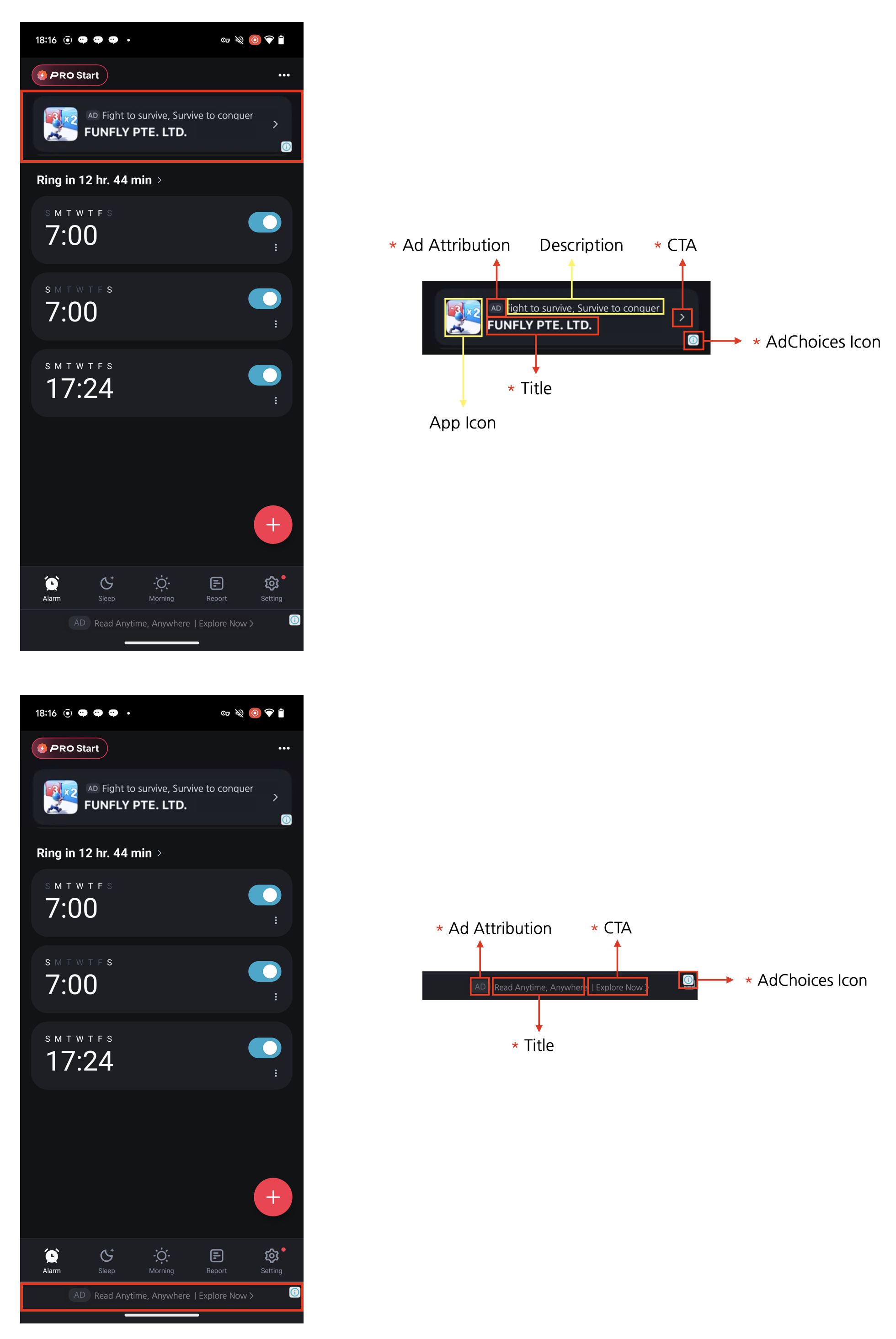
Four Required Elements for Native AdsNative ads can be designed to complement the content and look of your app. However, the following four required elements must be included. These elements are necessary to clearly mark native ads as advertisements so that users don’t mistake them for content, and to ensure the minimum advertising effectiveness expected by advertisers.
- Ad attribution: You must clearly display ad attribution text such as “Ad”, “Advertisement”, or “Sponsored” (localized appropriately) in the ad area so users can clearly identify the content as advertising.
- AdChoices icon: The AdChoices overlay icon enables users to identify and control ads, typically displayed as an ’ⓘ’ icon. This icon is automatically added by the DARO SDK, so no separate implementation is required. It is placed in one of the four corners of the ad view (top-left, top-right, bottom-right, bottom-left), with bottom-right as the default. You can pick the corner via the
preferredAdChoicesPositionoption (see the AdChoices placement section below). Please lay out your ad view so the selected corner is not overlapped or obscured by other UI elements. The icon’s appearance and behavior may vary depending on the ad source (demand). - Title: The ad title must be displayed.
- CTA (Call to action): A CTA button with text such as “Install”, “Open”, or “Download” must be included. The size and format of the button can be freely configured, and it can be replaced with a text field depending on the situation. Since the ad source (demand) provides the CTA text, there is no need to specify fixed wording.
Ad Unit Setup
Configure your Ad Unit using the Ad Unit Key issued from the dashboard.- Swift
- Objective-C
Native Ad Implementation
Basic Implementation
Constructor Parameters
TheDaroAdNativeView constructor, and any custom view that subclasses it, takes three parameters.
unit: DaroAdUnit- The Ad Unit built from the Ad Unit Key issued in the dashboard. Required, with no default.
autoLoad: Bool = true- Whether the view loads the initial ad as soon as it is created. Set it to
falseto load when you callloadAd()instead.
- Whether the view loads the initial ad as soon as it is created. Set it to
preferredAdChoicesPosition: DaroAdChoicesPosition = .bottomRight- The corner the AdChoices icon renders in. Choose one of
topLeft,topRight,bottomLeft,bottomRight. See the AdChoices Position section below for details.
- The corner the AdChoices icon renders in. Choose one of
autoLoad or preferredAdChoicesPosition, as the later examples do, must override the superclass initializer and forward all three arguments. Declaring only init(unit:) means the superclass initializers are not inherited, so code that passes the remaining arguments does not compile.
- Swift
- Objective-C
In Swift, implement a custom view by subclassing
DaroAdNativeView.Native Ad Usage Example
This is an example of using native ads.Basic Usage
- Swift
- Objective-C
Note: The examples create views withautoLoad: false. After SDK initialization succeeds, configure listeners/delegates and the view, then callloadAd(). For the custom Objective-C view, callloadNativeAd. The SDK manages subsequent refreshes.
AdChoices placement
Use thepreferredAdChoicesPosition option to control which corner the AdChoices icon is rendered in within the ad view. If unset, it defaults to the bottom-right corner (.bottomRight). It applies to every native ad view — custom views that subclass DaroAdNativeView, DaroAdLineBannerView, and others.
Supported values: topLeft, topRight, bottomLeft, bottomRight.
DaroAdChoicesPosition
- Objective-C compatible
@objcenum — the same type is used from both Swift and Objective-C. - If not specified,
.bottomRight(DaroAdChoicesPositionBottomRightin Objective-C) is used as the default.
- Swift
- Objective-C
DaroAdLineBannerView also support the same preferredAdChoicesPosition parameter.Native Templates
DARO SDK provides basic native ad templates. This allows you to easily implement native ads without implementing custom views.Line Banner Template
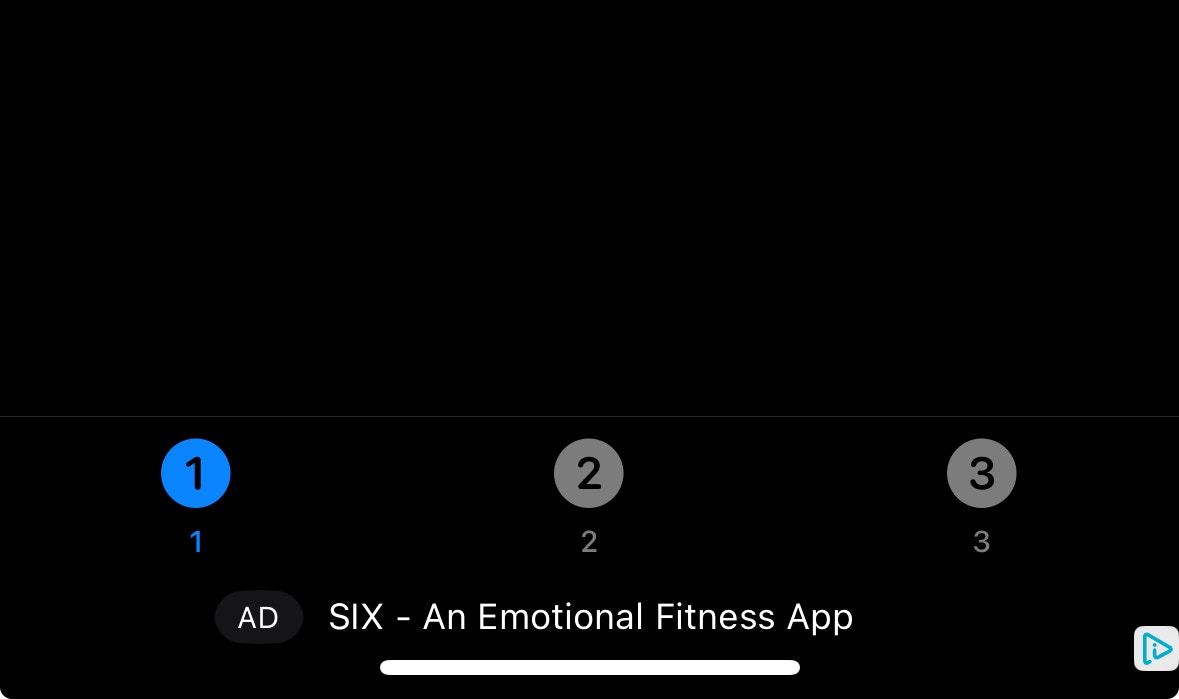
DaroAdLineBannerView is a horizontal native ad template. It has the following features:
- Basic layout including icon, title, and advertiser information
- Ad mark display
- Swift
- Objective-C
Note: The example creates the view withautoLoad: falseand callsloadAd()after setting up listeners.
Alignment Options
You can set the content alignment of the line banner using thealignment parameter.
- .left
- .center
- .right



Template Configuration
- Swift
- Objective-C
You can customize the template style through
DaroLineNativeAdConfigurationAdapt the UI to received assets
- Use
DaroAdNativeView.listener.onNativeAdAssetLoadedto handle missing assets. - Register the callback before loading. It receives
Set<NativeAdAssetType>. mediaContainer,iconImageView, andadvertiserLabelare your UI elements.
- If the media area has a fixed height,
isHiddenalone may not remove the empty space. Use an arranged subview inUIStackView, or adjust and restore the height constraints as well. - Do not hide the AD label or AdChoices based on this asset list.