> ## Documentation Index
> Fetch the complete documentation index at: https://guide.daro.so/llms.txt
> Use this file to discover all available pages before exploring further.
# Native Ads
> Implement native ads in your iOS app.
## Native Ad Format
Native ads provide individual ad components that you implement directly in your app's layout, unlike other formats where the SDK provides the complete ad view.
**Advantages**: Customize the layout to match your UI/UX and minimize visual disruption.
**Requirements**: Include an ad indicator and maintain visual differentiation to prevent users from confusing ads with content.
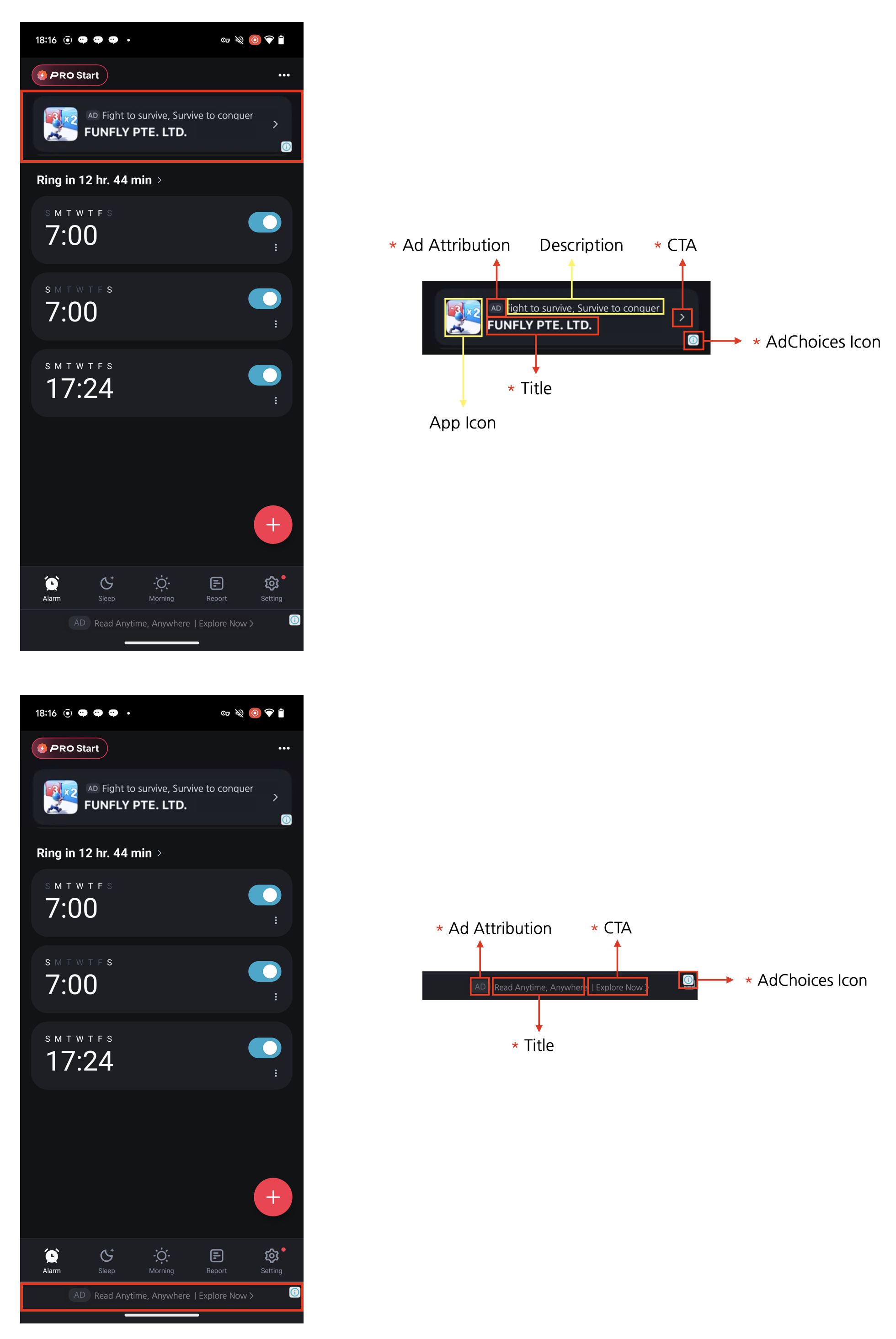 **Four Required Elements for Native Ads**
Native ads can be designed to complement the content and look of your app. However, **the following four required elements must be included.** These elements are necessary to clearly mark native ads as advertisements so that users don't mistake them for content, and to ensure the minimum advertising effectiveness expected by advertisers.
1. Ad attribution: You must clearly display ad attribution text such as "Ad", "Advertisement", or "Sponsored" (localized appropriately) in the ad area so users can clearly identify the content as advertising.
2. AdChoices icon: The AdChoices overlay icon enables users to identify and control ads, typically displayed as an 'ⓘ' icon. This icon is automatically added by the DARO SDK, so no separate implementation is required. It is placed in one of the four corners of the ad view (top-left, top-right, bottom-right, bottom-left), with bottom-right as the default. You can pick the corner via the `preferredAdChoicesPosition` option (see the [AdChoices placement](#adchoices-placement) section below). Please lay out your ad view so the selected corner is not overlapped or obscured by other UI elements. The icon's appearance and behavior may vary depending on the ad source (demand).
3. Title: The ad title must be displayed.
4. CTA (Call to action): A CTA button with text such as "Install", "Open", or "Download" must be included. The size and format of the button can be freely configured, and it can be replaced with a text field depending on the situation. Since the ad source (demand) provides the CTA text, there is no need to specify fixed wording.
***
## Ad Unit Setup
Configure your ad unit using the `ad unit ID` issued from the dashboard.
```swift theme={null}
let adUnit = DaroAdUnit(unitId: "your_native_unit_id")
```
```objc theme={null}
// In Objective-C, unitId is passed directly during initialization
// instead of creating a separate DaroAdUnit
NSString *nativeUnitId = @"your_native_unit_id";
```
## Native Ad Implementation
### Basic Implementation
In Swift, implement a custom view by subclassing `DaroAdNativeView`.
```swift theme={null}
final class DaroLargeNativeAdContentView: DaroAdNativeView {
override init(unit: DaroAdUnit) {
super.init(unit: unit)
layout()
}
@available(*, unavailable)
public required init?(coder: NSCoder) {
fatalError("init(coder:) has not been implemented")
}
var containerView = UIView()
var iconImageView: UIImageView = {
let view = UIImageView()
view.contentMode = .scaleAspectFill
view.layer.cornerRadius = 4
view.clipsToBounds = true
view.isHidden = false
return view
}()
var titleLabel: UILabel = {
let label = UILabel()
label.isUserInteractionEnabled = false
label.clipsToBounds = true
label.font = .systemFont(ofSize: 15, weight: .bold)
label.textColor = UIColor.white
label.numberOfLines = 2
return label
}()
var advertiserLabel: UILabel = {
let label = UILabel()
label.isUserInteractionEnabled = false
label.clipsToBounds = true
label.font = .systemFont(ofSize: 12, weight: .regular)
label.numberOfLines = 2
label.textColor = UIColor.white
return label
}()
/// Media View
let mediaContentView: UIView = UIView()
/// Call to Action
var callToActionButton: UIButton = {
let button = UIButton()
button.translatesAutoresizingMaskIntoConstraints = false
button.clipsToBounds = true
button.titleLabel?.font = .systemFont(ofSize: 20, weight: .bold)
button.setTitleColor(.label, for: .normal)
button.backgroundColor = UIColor.systemGray3
button.layer.cornerRadius = 4
return button
}()
/// Body
var bodyLabel: UILabel = {
let label = UILabel()
label.isUserInteractionEnabled = false
label.clipsToBounds = true
label.font = .systemFont(ofSize: 15, weight: .regular)
label.numberOfLines = 2
label.textColor = UIColor.white
return label
}()
private func layout() {
translatesAutoresizingMaskIntoConstraints = false
let blurEffect = UIBlurEffect(style: .systemMaterialDark)
let blurView = UIVisualEffectView(effect: blurEffect)
blurView.translatesAutoresizingMaskIntoConstraints = false
blurView.isUserInteractionEnabled = false
containerView.addSubview(blurView)
NSLayoutConstraint.activate([
blurView.leadingAnchor.constraint(equalTo: containerView.leadingAnchor),
blurView.trailingAnchor.constraint(equalTo: containerView.trailingAnchor),
blurView.topAnchor.constraint(equalTo: containerView.topAnchor),
blurView.bottomAnchor.constraint(equalTo: containerView.bottomAnchor),
])
containerView.clipsToBounds = true
addSubview(containerView)
containerView.translatesAutoresizingMaskIntoConstraints = false
NSLayoutConstraint.activate([
containerView.leadingAnchor.constraint(equalTo: leadingAnchor),
containerView.trailingAnchor.constraint(equalTo: trailingAnchor),
containerView.topAnchor.constraint(equalTo: topAnchor),
containerView.bottomAnchor.constraint(equalTo: bottomAnchor),
])
[
mediaContentView,
iconImageView,
titleLabel,
advertiserLabel,
bodyLabel,
callToActionButton,
]
.forEach {
containerView.addSubview($0)
$0.translatesAutoresizingMaskIntoConstraints = false
}
activateLayout()
}
func activateLayout() {
NSLayoutConstraint.activate([
iconImageView.topAnchor.constraint(equalTo: containerView.topAnchor, constant: 10),
iconImageView.leftAnchor.constraint(equalTo: containerView.leftAnchor, constant: 10),
iconImageView.heightAnchor.constraint(equalToConstant: 70),
iconImageView.widthAnchor.constraint(equalToConstant: 70),
titleLabel.topAnchor.constraint(equalTo: iconImageView.topAnchor),
titleLabel.leftAnchor.constraint(equalTo: iconImageView.rightAnchor, constant: 10),
titleLabel.rightAnchor.constraint(equalTo: containerView.rightAnchor, constant: -10),
advertiserLabel.bottomAnchor.constraint(equalTo: iconImageView.bottomAnchor),
advertiserLabel.leftAnchor.constraint(equalTo: iconImageView.rightAnchor, constant: 10),
bodyLabel.topAnchor.constraint(equalTo: iconImageView.bottomAnchor, constant: 10),
bodyLabel.leftAnchor.constraint(equalTo: containerView.leftAnchor, constant: 10),
bodyLabel.rightAnchor.constraint(equalTo: containerView.rightAnchor, constant: -10),
mediaContentView.topAnchor.constraint(equalTo: bodyLabel.bottomAnchor, constant: 10),
mediaContentView.widthAnchor.constraint(equalTo: containerView.widthAnchor),
mediaContentView.heightAnchor.constraint(equalTo: containerView.widthAnchor),
mediaContentView.centerYAnchor.constraint(equalTo: containerView.centerYAnchor),
mediaContentView.centerXAnchor.constraint(equalTo: containerView.centerXAnchor),
callToActionButton.topAnchor.constraint(equalTo: mediaContentView.bottomAnchor, constant: 10),
callToActionButton.bottomAnchor.constraint(equalTo: containerView.bottomAnchor, constant: -10),
callToActionButton.leftAnchor.constraint(equalTo: containerView.leftAnchor, constant: 20),
callToActionButton.rightAnchor.constraint(equalTo: containerView.rightAnchor, constant: -20),
])
bindViews(
titleLabel: titleLabel,
advertiserLabel: advertiserLabel,
bodyLabel: bodyLabel,
iconImageView: iconImageView,
mediaContentView: mediaContentView,
callToActionButton: callToActionButton
)
}
}
```
In Objective-C, implement a custom view by subclassing `UIView` and containing `DaroObjCNativeView` internally.
**Important: View Hierarchy Structure**
When implementing native ads in Objective-C, **all UI components must be added to `nativeAdView`**.
Pay careful attention to call `addSubview` on `_nativeAdView`, not on `self`.
```objc theme={null}
// ❌ Incorrect
[self addSubview:_titleLabel];
// ✅ Correct
[_nativeAdView addSubview:_titleLabel];
```
**Header file (CustomDaroNativeView\.h):**
```objc theme={null}
#import
@class DaroObjCNativeView;
@protocol DaroObjCNativeViewDelegate;
@interface CustomDaroNativeView : UIView
@property (nonatomic, strong, readonly) UIImageView *iconImageView;
@property (nonatomic, strong, readonly) UILabel *titleLabel;
@property (nonatomic, strong, readonly) UILabel *advertiserLabel;
@property (nonatomic, strong, readonly) UILabel *bodyLabel;
@property (nonatomic, strong, readonly) UIView *mediaContentView;
@property (nonatomic, strong, readonly) UIButton *callToActionButton;
@property (nonatomic, strong, readonly) DaroObjCNativeView *nativeAdView;
@property (nonatomic, weak, nullable) id delegate;
- (instancetype)initWithUnitId:(NSString *)unitId;
- (instancetype)initWithUnitId:(NSString *)unitId autoLoad:(BOOL)autoLoad;
- (void)loadNativeAd;
@end
```
**Implementation file (CustomDaroNativeView\.m):**
```objc theme={null}
#import "CustomDaroNativeView.h"
#import
@interface CustomDaroNativeView ()
@property (nonatomic, strong, readwrite) UIImageView *iconImageView;
@property (nonatomic, strong, readwrite) UILabel *titleLabel;
@property (nonatomic, strong, readwrite) UILabel *advertiserLabel;
@property (nonatomic, strong, readwrite) UILabel *bodyLabel;
@property (nonatomic, strong, readwrite) UIView *mediaContentView;
@property (nonatomic, strong, readwrite) UIButton *callToActionButton;
@property (nonatomic, strong, readwrite) DaroObjCNativeView *nativeAdView;
@end
@implementation CustomDaroNativeView
- (instancetype)initWithUnitId:(NSString *)unitId {
return [self initWithUnitId:unitId autoLoad:NO];
}
- (instancetype)initWithUnitId:(NSString *)unitId autoLoad:(BOOL)autoLoad {
self = [super initWithFrame:CGRectZero];
if (self) {
// Create DaroObjCNativeView
_nativeAdView = [[DaroObjCNativeView alloc] initWithUnitId:unitId autoLoad:NO];
[self setupCustomLayout];
}
return self;
}
- (void)setupCustomLayout {
// Step 1: Add nativeAdView to self
_nativeAdView.translatesAutoresizingMaskIntoConstraints = NO;
[self addSubview:_nativeAdView];
// Step 2: Create UI components
_iconImageView = [[UIImageView alloc] init];
_iconImageView.contentMode = UIViewContentModeScaleAspectFill;
_iconImageView.layer.cornerRadius = 8;
_iconImageView.clipsToBounds = YES;
_iconImageView.translatesAutoresizingMaskIntoConstraints = NO;
_titleLabel = [[UILabel alloc] init];
_titleLabel.font = [UIFont boldSystemFontOfSize:17];
_titleLabel.numberOfLines = 2;
_titleLabel.translatesAutoresizingMaskIntoConstraints = NO;
_advertiserLabel = [[UILabel alloc] init];
_advertiserLabel.font = [UIFont systemFontOfSize:13];
_advertiserLabel.textColor = [UIColor secondaryLabelColor];
_advertiserLabel.numberOfLines = 1;
_advertiserLabel.translatesAutoresizingMaskIntoConstraints = NO;
_bodyLabel = [[UILabel alloc] init];
_bodyLabel.font = [UIFont systemFontOfSize:14];
_bodyLabel.numberOfLines = 3;
_bodyLabel.translatesAutoresizingMaskIntoConstraints = NO;
_mediaContentView = [[UIView alloc] init];
_mediaContentView.backgroundColor = [UIColor systemGray5Color];
_mediaContentView.layer.cornerRadius = 8;
_mediaContentView.clipsToBounds = YES;
_mediaContentView.translatesAutoresizingMaskIntoConstraints = NO;
_callToActionButton = [UIButton buttonWithType:UIButtonTypeSystem];
_callToActionButton.titleLabel.font = [UIFont boldSystemFontOfSize:16];
_callToActionButton.backgroundColor = [UIColor systemBlueColor];
[_callToActionButton setTitleColor:[UIColor whiteColor] forState:UIControlStateNormal];
_callToActionButton.layer.cornerRadius = 8;
_callToActionButton.translatesAutoresizingMaskIntoConstraints = NO;
// Step 3: ⚠️ Important - Add UI components to nativeAdView
// Must be added to _nativeAdView, not self!
[_nativeAdView addSubview:_iconImageView];
[_nativeAdView addSubview:_titleLabel];
[_nativeAdView addSubview:_advertiserLabel];
[_nativeAdView addSubview:_bodyLabel];
[_nativeAdView addSubview:_mediaContentView];
[_nativeAdView addSubview:_callToActionButton];
// Step 4: Setup Auto Layout constraints
[NSLayoutConstraint activateConstraints:@[
// nativeAdView - fill parent view
[_nativeAdView.topAnchor constraintEqualToAnchor:self.topAnchor],
[_nativeAdView.leadingAnchor constraintEqualToAnchor:self.leadingAnchor],
[_nativeAdView.trailingAnchor constraintEqualToAnchor:self.trailingAnchor],
[_nativeAdView.bottomAnchor constraintEqualToAnchor:self.bottomAnchor],
// Icon - top left, 60x60
[_iconImageView.topAnchor constraintEqualToAnchor:_nativeAdView.topAnchor],
[_iconImageView.leadingAnchor constraintEqualToAnchor:_nativeAdView.leadingAnchor],
[_iconImageView.widthAnchor constraintEqualToConstant:60],
[_iconImageView.heightAnchor constraintEqualToConstant:60],
// Title - next to icon
[_titleLabel.topAnchor constraintEqualToAnchor:_nativeAdView.topAnchor],
[_titleLabel.leadingAnchor constraintEqualToAnchor:_iconImageView.trailingAnchor constant:12],
[_titleLabel.trailingAnchor constraintEqualToAnchor:_nativeAdView.trailingAnchor],
// Advertiser - below title
[_advertiserLabel.topAnchor constraintEqualToAnchor:_titleLabel.bottomAnchor constant:4],
[_advertiserLabel.leadingAnchor constraintEqualToAnchor:_titleLabel.leadingAnchor],
[_advertiserLabel.trailingAnchor constraintEqualToAnchor:_nativeAdView.trailingAnchor],
// Body - below icon and advertiser
[_bodyLabel.topAnchor constraintEqualToAnchor:_iconImageView.bottomAnchor constant:12],
[_bodyLabel.leadingAnchor constraintEqualToAnchor:_nativeAdView.leadingAnchor],
[_bodyLabel.trailingAnchor constraintEqualToAnchor:_nativeAdView.trailingAnchor],
// Media content - below body
[_mediaContentView.topAnchor constraintEqualToAnchor:_bodyLabel.bottomAnchor constant:12],
[_mediaContentView.leadingAnchor constraintEqualToAnchor:_nativeAdView.leadingAnchor],
[_mediaContentView.trailingAnchor constraintEqualToAnchor:_nativeAdView.trailingAnchor],
[_mediaContentView.heightAnchor constraintEqualToConstant:200],
// CTA button - at bottom
[_callToActionButton.topAnchor constraintEqualToAnchor:_mediaContentView.bottomAnchor constant:12],
[_callToActionButton.leadingAnchor constraintEqualToAnchor:_nativeAdView.leadingAnchor],
[_callToActionButton.trailingAnchor constraintEqualToAnchor:_nativeAdView.trailingAnchor],
[_callToActionButton.heightAnchor constraintEqualToConstant:44],
[_callToActionButton.bottomAnchor constraintEqualToAnchor:_nativeAdView.bottomAnchor]
]];
// Step 5: Bind UI components to native ad view
[_nativeAdView bindNativeViewsWithIconImageView:_iconImageView
titleLabel:_titleLabel
advertiserLabel:_advertiserLabel
bodyLabel:_bodyLabel
mediaContentView:_mediaContentView
callToActionButton:_callToActionButton];
}
- (void)setDelegate:(id)delegate {
_delegate = delegate;
_nativeAdView.delegate = delegate;
}
- (void)loadNativeAd {
[_nativeAdView loadNativeAd];
}
@end
```
### Native Ad Usage Example
This is an example of using native ads.
#### Basic Usage
```swift theme={null}
class ExampleViewController: UIViewController {
private var nativeAdView: DaroLargeNativeAdContentView?
override func viewDidLoad() {
super.viewDidLoad()
setupNativeAd()
}
private func setupNativeAd() {
let adUnit = DaroAdUnit(unitId: "your_native_unit_id")
nativeAdView = DaroLargeNativeAdContentView(unit: adUnit)
guard let nativeAdView = nativeAdView else { return }
nativeAdView.translatesAutoresizingMaskIntoConstraints = false
view.addSubview(nativeAdView)
NSLayoutConstraint.activate([
nativeAdView.centerXAnchor.constraint(equalTo: view.centerXAnchor),
nativeAdView.widthAnchor.constraint(equalToConstant: 300),
nativeAdView.heightAnchor.constraint(equalToConstant: 500),
nativeAdView.topAnchor.constraint(equalTo: view.safeAreaLayoutGuide.topAnchor, constant: 20)
])
nativeAdView.listener.onAdClicked = { adInfo in
print("[DARO] Listener Native Ad clicked: \(adInfo)")
}
nativeAdView.listener.onAdImpression = { adInfo in
print("[DARO] Listener Native Ad impression: \(adInfo)")
}
nativeAdView.listener.onAdLoadSuccess = { ad, adInfo in
print("[DARO] Listener Native Ad loaded: \(ad) \(adInfo)")
}
nativeAdView.listener.onAdLoadFail = { error in
print("[DARO] Listener Native Ad failed: \(error)")
}
nativeAdView.loadAd()
}
}
```
```objc theme={null}
@interface ExampleViewController ()
@property (nonatomic, strong) CustomDaroNativeView *nativeAdView;
@end
@implementation ExampleViewController
- (void)viewDidLoad {
[super viewDidLoad];
[self setupNativeAd];
}
- (void)setupNativeAd {
self.nativeAdView = [[CustomDaroNativeView alloc]
initWithUnitId:@"your_native_unit_id"];
self.nativeAdView.delegate = self;
self.nativeAdView.translatesAutoresizingMaskIntoConstraints = NO;
[self.view addSubview:self.nativeAdView];
[NSLayoutConstraint activateConstraints:@[
[self.nativeAdView.centerXAnchor constraintEqualToAnchor:self.view.centerXAnchor],
[self.nativeAdView.widthAnchor constraintEqualToConstant:300],
[self.nativeAdView.heightAnchor constraintEqualToConstant:500],
[self.nativeAdView.topAnchor constraintEqualToAnchor:self.view.safeAreaLayoutGuide.topAnchor constant:20]
]];
[self.nativeAdView loadNativeAd];
}
#pragma mark - DaroObjCNativeViewDelegate
- (void)nativeViewDidLoad:(DaroObjCNativeView *)nativeView
adInfo:(DaroObjCAdInfo *)adInfo {
NSLog(@"[DARO] Native ad loaded - Unit: %@", adInfo.adUnitId);
}
- (void)nativeView:(DaroObjCNativeView *)nativeView
didFailWithError:(NSError *)error {
NSLog(@"[DARO] Failed to load: %@", error.localizedDescription);
}
- (void)nativeViewDidClick:(DaroObjCNativeView *)nativeView
adInfo:(DaroObjCAdInfo *)adInfo {
NSLog(@"[DARO] Native ad clicked");
}
- (void)nativeViewDidRecordImpression:(DaroObjCNativeView *)nativeView
adInfo:(DaroObjCAdInfo *)adInfo {
NSLog(@"[DARO] Impression recorded");
}
@end
```
> **Note**: Native ads automatically load the initial ad upon creation.
#### Manual Initial Load Setup
You can use the `autoLoad` parameter to directly control the initial load timing of the ad.
```swift theme={null}
// Native ad - manual initial load mode
let nativeAdView = DaroLargeNativeAdContentView(
unit: adUnit,
autoLoad: false // Disable automatic initial load
)
// Load initial ad at desired time
nativeAdView.loadAd()
```
```objc theme={null}
// Native ad - manual initial load mode
CustomDaroNativeView *nativeAdView = [[CustomDaroNativeView alloc]
initWithUnitId:@"your_native_unit_id"
autoLoad:NO]; // Disable automatic initial load
// Load initial ad at desired time
[nativeAdView loadNativeAd];
```
##### autoLoad Parameter
* `true` (default): Automatically loads initial ad when view is created
* `false`: Initial ad loads when `loadAd()` is manually called
Manual initial load is useful in the following cases:
* When you want to display the ad after a specific user action
* When you want to control ad load timing during screen transitions
* When you want to load the ad after checking network status
**Note**: Ad refresh after loading is automatically managed by the SDK.
***
## AdChoices placement
Use the `preferredAdChoicesPosition` option to control which corner the AdChoices icon is rendered in within the ad view. If unset, it defaults to the bottom-right corner (`.bottomRight`). On iOS, **this option is supported equally on both the Daro and DaroM SDKs**, and applies to every native ad view (`DaroLargeNativeAdContentView`, `DaroAdLineBannerView`, and others).
Supported values: `topLeft`, `topRight`, `bottomLeft`, `bottomRight`.
### DaroAdChoicesPosition
```swift theme={null}
@objc public enum DaroAdChoicesPosition: Int {
case topLeft
case topRight
case bottomRight // default
case bottomLeft
}
```
* Objective-C compatible `@objc` enum — the same type is used from both Swift and Objective-C.
* If not specified, `.bottomRight` (`DaroAdChoicesPositionBottomRight` in Objective-C) is used as the default.
```swift theme={null}
let adUnit = DaroAdUnit(unitId: "your_native_unit_id")
// Display the AdChoices icon at the top-left
let nativeAdView = DaroLargeNativeAdContentView(
unit: adUnit,
preferredAdChoicesPosition: .topLeft
)
```
Other native views such as `DaroAdLineBannerView` also support the same `preferredAdChoicesPosition` parameter.
```objc theme={null}
DaroObjCNativeView *nativeAdView = [[DaroObjCNativeView alloc]
initWithUnitId:@"your_native_unit_id"
autoLoad:YES
preferredAdChoicesPosition:DaroAdChoicesPositionTopLeft];
```
**Fixed at initialization**
`preferredAdChoicesPosition` is fixed at ad view initialization and cannot be changed afterwards. To use a different position, create a new view instance.
**Behavior varies by demand source (preferred, not guaranteed)**
`preferredAdChoicesPosition` asks the demand source to place the AdChoices icon at the specified position. However, where it actually appears is decided by each demand source, so the requested position is not always honored.
Demand sources may respond differently:
* Some demand sources honor the requested position as-is.
* Some demand sources ignore the request and use their own fixed position.
* Some demand sources replace the AdChoices icon with their own ad indicator (such as an ad badge).
In every case, the relevant ad compliance requirements are satisfied.
Therefore, when designing your ad layout, **assume the AdChoices icon or ad badge can appear in any of the four corners** and reserve sufficient padding around each corner.
***
## Native Templates
DARO SDK provides basic native ad templates. This allows you to easily implement native ads without implementing custom views.
### Line Banner Template
`DaroAdLineBannerView` is a horizontal native ad template. It has the following features:
* Basic layout including icon, title, and advertiser information
* Ad mark display
**Four Required Elements for Native Ads**
Native ads can be designed to complement the content and look of your app. However, **the following four required elements must be included.** These elements are necessary to clearly mark native ads as advertisements so that users don't mistake them for content, and to ensure the minimum advertising effectiveness expected by advertisers.
1. Ad attribution: You must clearly display ad attribution text such as "Ad", "Advertisement", or "Sponsored" (localized appropriately) in the ad area so users can clearly identify the content as advertising.
2. AdChoices icon: The AdChoices overlay icon enables users to identify and control ads, typically displayed as an 'ⓘ' icon. This icon is automatically added by the DARO SDK, so no separate implementation is required. It is placed in one of the four corners of the ad view (top-left, top-right, bottom-right, bottom-left), with bottom-right as the default. You can pick the corner via the `preferredAdChoicesPosition` option (see the [AdChoices placement](#adchoices-placement) section below). Please lay out your ad view so the selected corner is not overlapped or obscured by other UI elements. The icon's appearance and behavior may vary depending on the ad source (demand).
3. Title: The ad title must be displayed.
4. CTA (Call to action): A CTA button with text such as "Install", "Open", or "Download" must be included. The size and format of the button can be freely configured, and it can be replaced with a text field depending on the situation. Since the ad source (demand) provides the CTA text, there is no need to specify fixed wording.
***
## Ad Unit Setup
Configure your ad unit using the `ad unit ID` issued from the dashboard.
```swift theme={null}
let adUnit = DaroAdUnit(unitId: "your_native_unit_id")
```
```objc theme={null}
// In Objective-C, unitId is passed directly during initialization
// instead of creating a separate DaroAdUnit
NSString *nativeUnitId = @"your_native_unit_id";
```
## Native Ad Implementation
### Basic Implementation
In Swift, implement a custom view by subclassing `DaroAdNativeView`.
```swift theme={null}
final class DaroLargeNativeAdContentView: DaroAdNativeView {
override init(unit: DaroAdUnit) {
super.init(unit: unit)
layout()
}
@available(*, unavailable)
public required init?(coder: NSCoder) {
fatalError("init(coder:) has not been implemented")
}
var containerView = UIView()
var iconImageView: UIImageView = {
let view = UIImageView()
view.contentMode = .scaleAspectFill
view.layer.cornerRadius = 4
view.clipsToBounds = true
view.isHidden = false
return view
}()
var titleLabel: UILabel = {
let label = UILabel()
label.isUserInteractionEnabled = false
label.clipsToBounds = true
label.font = .systemFont(ofSize: 15, weight: .bold)
label.textColor = UIColor.white
label.numberOfLines = 2
return label
}()
var advertiserLabel: UILabel = {
let label = UILabel()
label.isUserInteractionEnabled = false
label.clipsToBounds = true
label.font = .systemFont(ofSize: 12, weight: .regular)
label.numberOfLines = 2
label.textColor = UIColor.white
return label
}()
/// Media View
let mediaContentView: UIView = UIView()
/// Call to Action
var callToActionButton: UIButton = {
let button = UIButton()
button.translatesAutoresizingMaskIntoConstraints = false
button.clipsToBounds = true
button.titleLabel?.font = .systemFont(ofSize: 20, weight: .bold)
button.setTitleColor(.label, for: .normal)
button.backgroundColor = UIColor.systemGray3
button.layer.cornerRadius = 4
return button
}()
/// Body
var bodyLabel: UILabel = {
let label = UILabel()
label.isUserInteractionEnabled = false
label.clipsToBounds = true
label.font = .systemFont(ofSize: 15, weight: .regular)
label.numberOfLines = 2
label.textColor = UIColor.white
return label
}()
private func layout() {
translatesAutoresizingMaskIntoConstraints = false
let blurEffect = UIBlurEffect(style: .systemMaterialDark)
let blurView = UIVisualEffectView(effect: blurEffect)
blurView.translatesAutoresizingMaskIntoConstraints = false
blurView.isUserInteractionEnabled = false
containerView.addSubview(blurView)
NSLayoutConstraint.activate([
blurView.leadingAnchor.constraint(equalTo: containerView.leadingAnchor),
blurView.trailingAnchor.constraint(equalTo: containerView.trailingAnchor),
blurView.topAnchor.constraint(equalTo: containerView.topAnchor),
blurView.bottomAnchor.constraint(equalTo: containerView.bottomAnchor),
])
containerView.clipsToBounds = true
addSubview(containerView)
containerView.translatesAutoresizingMaskIntoConstraints = false
NSLayoutConstraint.activate([
containerView.leadingAnchor.constraint(equalTo: leadingAnchor),
containerView.trailingAnchor.constraint(equalTo: trailingAnchor),
containerView.topAnchor.constraint(equalTo: topAnchor),
containerView.bottomAnchor.constraint(equalTo: bottomAnchor),
])
[
mediaContentView,
iconImageView,
titleLabel,
advertiserLabel,
bodyLabel,
callToActionButton,
]
.forEach {
containerView.addSubview($0)
$0.translatesAutoresizingMaskIntoConstraints = false
}
activateLayout()
}
func activateLayout() {
NSLayoutConstraint.activate([
iconImageView.topAnchor.constraint(equalTo: containerView.topAnchor, constant: 10),
iconImageView.leftAnchor.constraint(equalTo: containerView.leftAnchor, constant: 10),
iconImageView.heightAnchor.constraint(equalToConstant: 70),
iconImageView.widthAnchor.constraint(equalToConstant: 70),
titleLabel.topAnchor.constraint(equalTo: iconImageView.topAnchor),
titleLabel.leftAnchor.constraint(equalTo: iconImageView.rightAnchor, constant: 10),
titleLabel.rightAnchor.constraint(equalTo: containerView.rightAnchor, constant: -10),
advertiserLabel.bottomAnchor.constraint(equalTo: iconImageView.bottomAnchor),
advertiserLabel.leftAnchor.constraint(equalTo: iconImageView.rightAnchor, constant: 10),
bodyLabel.topAnchor.constraint(equalTo: iconImageView.bottomAnchor, constant: 10),
bodyLabel.leftAnchor.constraint(equalTo: containerView.leftAnchor, constant: 10),
bodyLabel.rightAnchor.constraint(equalTo: containerView.rightAnchor, constant: -10),
mediaContentView.topAnchor.constraint(equalTo: bodyLabel.bottomAnchor, constant: 10),
mediaContentView.widthAnchor.constraint(equalTo: containerView.widthAnchor),
mediaContentView.heightAnchor.constraint(equalTo: containerView.widthAnchor),
mediaContentView.centerYAnchor.constraint(equalTo: containerView.centerYAnchor),
mediaContentView.centerXAnchor.constraint(equalTo: containerView.centerXAnchor),
callToActionButton.topAnchor.constraint(equalTo: mediaContentView.bottomAnchor, constant: 10),
callToActionButton.bottomAnchor.constraint(equalTo: containerView.bottomAnchor, constant: -10),
callToActionButton.leftAnchor.constraint(equalTo: containerView.leftAnchor, constant: 20),
callToActionButton.rightAnchor.constraint(equalTo: containerView.rightAnchor, constant: -20),
])
bindViews(
titleLabel: titleLabel,
advertiserLabel: advertiserLabel,
bodyLabel: bodyLabel,
iconImageView: iconImageView,
mediaContentView: mediaContentView,
callToActionButton: callToActionButton
)
}
}
```
In Objective-C, implement a custom view by subclassing `UIView` and containing `DaroObjCNativeView` internally.
**Important: View Hierarchy Structure**
When implementing native ads in Objective-C, **all UI components must be added to `nativeAdView`**.
Pay careful attention to call `addSubview` on `_nativeAdView`, not on `self`.
```objc theme={null}
// ❌ Incorrect
[self addSubview:_titleLabel];
// ✅ Correct
[_nativeAdView addSubview:_titleLabel];
```
**Header file (CustomDaroNativeView\.h):**
```objc theme={null}
#import
@class DaroObjCNativeView;
@protocol DaroObjCNativeViewDelegate;
@interface CustomDaroNativeView : UIView
@property (nonatomic, strong, readonly) UIImageView *iconImageView;
@property (nonatomic, strong, readonly) UILabel *titleLabel;
@property (nonatomic, strong, readonly) UILabel *advertiserLabel;
@property (nonatomic, strong, readonly) UILabel *bodyLabel;
@property (nonatomic, strong, readonly) UIView *mediaContentView;
@property (nonatomic, strong, readonly) UIButton *callToActionButton;
@property (nonatomic, strong, readonly) DaroObjCNativeView *nativeAdView;
@property (nonatomic, weak, nullable) id delegate;
- (instancetype)initWithUnitId:(NSString *)unitId;
- (instancetype)initWithUnitId:(NSString *)unitId autoLoad:(BOOL)autoLoad;
- (void)loadNativeAd;
@end
```
**Implementation file (CustomDaroNativeView\.m):**
```objc theme={null}
#import "CustomDaroNativeView.h"
#import
@interface CustomDaroNativeView ()
@property (nonatomic, strong, readwrite) UIImageView *iconImageView;
@property (nonatomic, strong, readwrite) UILabel *titleLabel;
@property (nonatomic, strong, readwrite) UILabel *advertiserLabel;
@property (nonatomic, strong, readwrite) UILabel *bodyLabel;
@property (nonatomic, strong, readwrite) UIView *mediaContentView;
@property (nonatomic, strong, readwrite) UIButton *callToActionButton;
@property (nonatomic, strong, readwrite) DaroObjCNativeView *nativeAdView;
@end
@implementation CustomDaroNativeView
- (instancetype)initWithUnitId:(NSString *)unitId {
return [self initWithUnitId:unitId autoLoad:NO];
}
- (instancetype)initWithUnitId:(NSString *)unitId autoLoad:(BOOL)autoLoad {
self = [super initWithFrame:CGRectZero];
if (self) {
// Create DaroObjCNativeView
_nativeAdView = [[DaroObjCNativeView alloc] initWithUnitId:unitId autoLoad:NO];
[self setupCustomLayout];
}
return self;
}
- (void)setupCustomLayout {
// Step 1: Add nativeAdView to self
_nativeAdView.translatesAutoresizingMaskIntoConstraints = NO;
[self addSubview:_nativeAdView];
// Step 2: Create UI components
_iconImageView = [[UIImageView alloc] init];
_iconImageView.contentMode = UIViewContentModeScaleAspectFill;
_iconImageView.layer.cornerRadius = 8;
_iconImageView.clipsToBounds = YES;
_iconImageView.translatesAutoresizingMaskIntoConstraints = NO;
_titleLabel = [[UILabel alloc] init];
_titleLabel.font = [UIFont boldSystemFontOfSize:17];
_titleLabel.numberOfLines = 2;
_titleLabel.translatesAutoresizingMaskIntoConstraints = NO;
_advertiserLabel = [[UILabel alloc] init];
_advertiserLabel.font = [UIFont systemFontOfSize:13];
_advertiserLabel.textColor = [UIColor secondaryLabelColor];
_advertiserLabel.numberOfLines = 1;
_advertiserLabel.translatesAutoresizingMaskIntoConstraints = NO;
_bodyLabel = [[UILabel alloc] init];
_bodyLabel.font = [UIFont systemFontOfSize:14];
_bodyLabel.numberOfLines = 3;
_bodyLabel.translatesAutoresizingMaskIntoConstraints = NO;
_mediaContentView = [[UIView alloc] init];
_mediaContentView.backgroundColor = [UIColor systemGray5Color];
_mediaContentView.layer.cornerRadius = 8;
_mediaContentView.clipsToBounds = YES;
_mediaContentView.translatesAutoresizingMaskIntoConstraints = NO;
_callToActionButton = [UIButton buttonWithType:UIButtonTypeSystem];
_callToActionButton.titleLabel.font = [UIFont boldSystemFontOfSize:16];
_callToActionButton.backgroundColor = [UIColor systemBlueColor];
[_callToActionButton setTitleColor:[UIColor whiteColor] forState:UIControlStateNormal];
_callToActionButton.layer.cornerRadius = 8;
_callToActionButton.translatesAutoresizingMaskIntoConstraints = NO;
// Step 3: ⚠️ Important - Add UI components to nativeAdView
// Must be added to _nativeAdView, not self!
[_nativeAdView addSubview:_iconImageView];
[_nativeAdView addSubview:_titleLabel];
[_nativeAdView addSubview:_advertiserLabel];
[_nativeAdView addSubview:_bodyLabel];
[_nativeAdView addSubview:_mediaContentView];
[_nativeAdView addSubview:_callToActionButton];
// Step 4: Setup Auto Layout constraints
[NSLayoutConstraint activateConstraints:@[
// nativeAdView - fill parent view
[_nativeAdView.topAnchor constraintEqualToAnchor:self.topAnchor],
[_nativeAdView.leadingAnchor constraintEqualToAnchor:self.leadingAnchor],
[_nativeAdView.trailingAnchor constraintEqualToAnchor:self.trailingAnchor],
[_nativeAdView.bottomAnchor constraintEqualToAnchor:self.bottomAnchor],
// Icon - top left, 60x60
[_iconImageView.topAnchor constraintEqualToAnchor:_nativeAdView.topAnchor],
[_iconImageView.leadingAnchor constraintEqualToAnchor:_nativeAdView.leadingAnchor],
[_iconImageView.widthAnchor constraintEqualToConstant:60],
[_iconImageView.heightAnchor constraintEqualToConstant:60],
// Title - next to icon
[_titleLabel.topAnchor constraintEqualToAnchor:_nativeAdView.topAnchor],
[_titleLabel.leadingAnchor constraintEqualToAnchor:_iconImageView.trailingAnchor constant:12],
[_titleLabel.trailingAnchor constraintEqualToAnchor:_nativeAdView.trailingAnchor],
// Advertiser - below title
[_advertiserLabel.topAnchor constraintEqualToAnchor:_titleLabel.bottomAnchor constant:4],
[_advertiserLabel.leadingAnchor constraintEqualToAnchor:_titleLabel.leadingAnchor],
[_advertiserLabel.trailingAnchor constraintEqualToAnchor:_nativeAdView.trailingAnchor],
// Body - below icon and advertiser
[_bodyLabel.topAnchor constraintEqualToAnchor:_iconImageView.bottomAnchor constant:12],
[_bodyLabel.leadingAnchor constraintEqualToAnchor:_nativeAdView.leadingAnchor],
[_bodyLabel.trailingAnchor constraintEqualToAnchor:_nativeAdView.trailingAnchor],
// Media content - below body
[_mediaContentView.topAnchor constraintEqualToAnchor:_bodyLabel.bottomAnchor constant:12],
[_mediaContentView.leadingAnchor constraintEqualToAnchor:_nativeAdView.leadingAnchor],
[_mediaContentView.trailingAnchor constraintEqualToAnchor:_nativeAdView.trailingAnchor],
[_mediaContentView.heightAnchor constraintEqualToConstant:200],
// CTA button - at bottom
[_callToActionButton.topAnchor constraintEqualToAnchor:_mediaContentView.bottomAnchor constant:12],
[_callToActionButton.leadingAnchor constraintEqualToAnchor:_nativeAdView.leadingAnchor],
[_callToActionButton.trailingAnchor constraintEqualToAnchor:_nativeAdView.trailingAnchor],
[_callToActionButton.heightAnchor constraintEqualToConstant:44],
[_callToActionButton.bottomAnchor constraintEqualToAnchor:_nativeAdView.bottomAnchor]
]];
// Step 5: Bind UI components to native ad view
[_nativeAdView bindNativeViewsWithIconImageView:_iconImageView
titleLabel:_titleLabel
advertiserLabel:_advertiserLabel
bodyLabel:_bodyLabel
mediaContentView:_mediaContentView
callToActionButton:_callToActionButton];
}
- (void)setDelegate:(id)delegate {
_delegate = delegate;
_nativeAdView.delegate = delegate;
}
- (void)loadNativeAd {
[_nativeAdView loadNativeAd];
}
@end
```
### Native Ad Usage Example
This is an example of using native ads.
#### Basic Usage
```swift theme={null}
class ExampleViewController: UIViewController {
private var nativeAdView: DaroLargeNativeAdContentView?
override func viewDidLoad() {
super.viewDidLoad()
setupNativeAd()
}
private func setupNativeAd() {
let adUnit = DaroAdUnit(unitId: "your_native_unit_id")
nativeAdView = DaroLargeNativeAdContentView(unit: adUnit)
guard let nativeAdView = nativeAdView else { return }
nativeAdView.translatesAutoresizingMaskIntoConstraints = false
view.addSubview(nativeAdView)
NSLayoutConstraint.activate([
nativeAdView.centerXAnchor.constraint(equalTo: view.centerXAnchor),
nativeAdView.widthAnchor.constraint(equalToConstant: 300),
nativeAdView.heightAnchor.constraint(equalToConstant: 500),
nativeAdView.topAnchor.constraint(equalTo: view.safeAreaLayoutGuide.topAnchor, constant: 20)
])
nativeAdView.listener.onAdClicked = { adInfo in
print("[DARO] Listener Native Ad clicked: \(adInfo)")
}
nativeAdView.listener.onAdImpression = { adInfo in
print("[DARO] Listener Native Ad impression: \(adInfo)")
}
nativeAdView.listener.onAdLoadSuccess = { ad, adInfo in
print("[DARO] Listener Native Ad loaded: \(ad) \(adInfo)")
}
nativeAdView.listener.onAdLoadFail = { error in
print("[DARO] Listener Native Ad failed: \(error)")
}
nativeAdView.loadAd()
}
}
```
```objc theme={null}
@interface ExampleViewController ()
@property (nonatomic, strong) CustomDaroNativeView *nativeAdView;
@end
@implementation ExampleViewController
- (void)viewDidLoad {
[super viewDidLoad];
[self setupNativeAd];
}
- (void)setupNativeAd {
self.nativeAdView = [[CustomDaroNativeView alloc]
initWithUnitId:@"your_native_unit_id"];
self.nativeAdView.delegate = self;
self.nativeAdView.translatesAutoresizingMaskIntoConstraints = NO;
[self.view addSubview:self.nativeAdView];
[NSLayoutConstraint activateConstraints:@[
[self.nativeAdView.centerXAnchor constraintEqualToAnchor:self.view.centerXAnchor],
[self.nativeAdView.widthAnchor constraintEqualToConstant:300],
[self.nativeAdView.heightAnchor constraintEqualToConstant:500],
[self.nativeAdView.topAnchor constraintEqualToAnchor:self.view.safeAreaLayoutGuide.topAnchor constant:20]
]];
[self.nativeAdView loadNativeAd];
}
#pragma mark - DaroObjCNativeViewDelegate
- (void)nativeViewDidLoad:(DaroObjCNativeView *)nativeView
adInfo:(DaroObjCAdInfo *)adInfo {
NSLog(@"[DARO] Native ad loaded - Unit: %@", adInfo.adUnitId);
}
- (void)nativeView:(DaroObjCNativeView *)nativeView
didFailWithError:(NSError *)error {
NSLog(@"[DARO] Failed to load: %@", error.localizedDescription);
}
- (void)nativeViewDidClick:(DaroObjCNativeView *)nativeView
adInfo:(DaroObjCAdInfo *)adInfo {
NSLog(@"[DARO] Native ad clicked");
}
- (void)nativeViewDidRecordImpression:(DaroObjCNativeView *)nativeView
adInfo:(DaroObjCAdInfo *)adInfo {
NSLog(@"[DARO] Impression recorded");
}
@end
```
> **Note**: Native ads automatically load the initial ad upon creation.
#### Manual Initial Load Setup
You can use the `autoLoad` parameter to directly control the initial load timing of the ad.
```swift theme={null}
// Native ad - manual initial load mode
let nativeAdView = DaroLargeNativeAdContentView(
unit: adUnit,
autoLoad: false // Disable automatic initial load
)
// Load initial ad at desired time
nativeAdView.loadAd()
```
```objc theme={null}
// Native ad - manual initial load mode
CustomDaroNativeView *nativeAdView = [[CustomDaroNativeView alloc]
initWithUnitId:@"your_native_unit_id"
autoLoad:NO]; // Disable automatic initial load
// Load initial ad at desired time
[nativeAdView loadNativeAd];
```
##### autoLoad Parameter
* `true` (default): Automatically loads initial ad when view is created
* `false`: Initial ad loads when `loadAd()` is manually called
Manual initial load is useful in the following cases:
* When you want to display the ad after a specific user action
* When you want to control ad load timing during screen transitions
* When you want to load the ad after checking network status
**Note**: Ad refresh after loading is automatically managed by the SDK.
***
## AdChoices placement
Use the `preferredAdChoicesPosition` option to control which corner the AdChoices icon is rendered in within the ad view. If unset, it defaults to the bottom-right corner (`.bottomRight`). On iOS, **this option is supported equally on both the Daro and DaroM SDKs**, and applies to every native ad view (`DaroLargeNativeAdContentView`, `DaroAdLineBannerView`, and others).
Supported values: `topLeft`, `topRight`, `bottomLeft`, `bottomRight`.
### DaroAdChoicesPosition
```swift theme={null}
@objc public enum DaroAdChoicesPosition: Int {
case topLeft
case topRight
case bottomRight // default
case bottomLeft
}
```
* Objective-C compatible `@objc` enum — the same type is used from both Swift and Objective-C.
* If not specified, `.bottomRight` (`DaroAdChoicesPositionBottomRight` in Objective-C) is used as the default.
```swift theme={null}
let adUnit = DaroAdUnit(unitId: "your_native_unit_id")
// Display the AdChoices icon at the top-left
let nativeAdView = DaroLargeNativeAdContentView(
unit: adUnit,
preferredAdChoicesPosition: .topLeft
)
```
Other native views such as `DaroAdLineBannerView` also support the same `preferredAdChoicesPosition` parameter.
```objc theme={null}
DaroObjCNativeView *nativeAdView = [[DaroObjCNativeView alloc]
initWithUnitId:@"your_native_unit_id"
autoLoad:YES
preferredAdChoicesPosition:DaroAdChoicesPositionTopLeft];
```
**Fixed at initialization**
`preferredAdChoicesPosition` is fixed at ad view initialization and cannot be changed afterwards. To use a different position, create a new view instance.
**Behavior varies by demand source (preferred, not guaranteed)**
`preferredAdChoicesPosition` asks the demand source to place the AdChoices icon at the specified position. However, where it actually appears is decided by each demand source, so the requested position is not always honored.
Demand sources may respond differently:
* Some demand sources honor the requested position as-is.
* Some demand sources ignore the request and use their own fixed position.
* Some demand sources replace the AdChoices icon with their own ad indicator (such as an ad badge).
In every case, the relevant ad compliance requirements are satisfied.
Therefore, when designing your ad layout, **assume the AdChoices icon or ad badge can appear in any of the four corners** and reserve sufficient padding around each corner.
***
## Native Templates
DARO SDK provides basic native ad templates. This allows you to easily implement native ads without implementing custom views.
### Line Banner Template
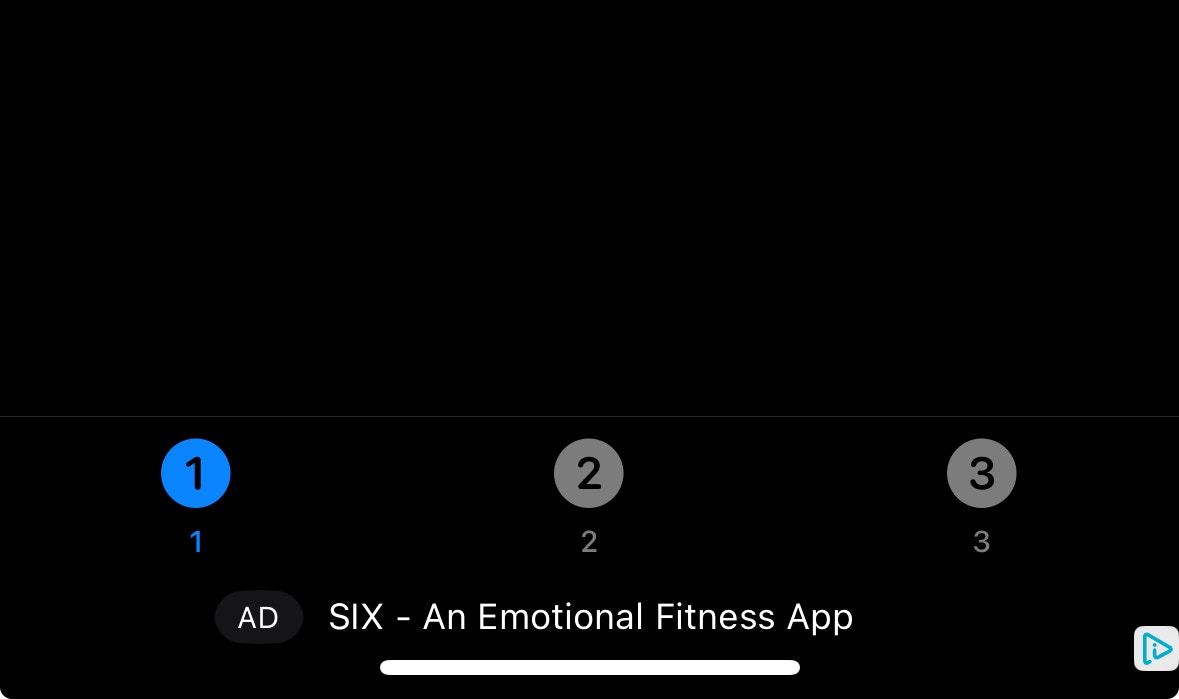
`DaroAdLineBannerView` is a horizontal native ad template. It has the following features:
* Basic layout including icon, title, and advertiser information
* Ad mark display
 ```swift theme={null}
class ExampleViewController: UIViewController {
private var lineBannerView: DaroAdLineBannerView?
override func viewDidLoad() {
super.viewDidLoad()
setupLineBannerAd()
}
private func setupLineBannerAd() {
let adUnit = DaroAdUnit(unitId: "your_native_unit_id")
lineBannerView = DaroAdLineBannerView(unit: adUnit)
guard let lineBannerView = lineBannerView else { return }
lineBannerView.translatesAutoresizingMaskIntoConstraints = false
view.addSubview(lineBannerView)
NSLayoutConstraint.activate([
lineBannerView.leadingAnchor.constraint(equalTo: view.leadingAnchor),
lineBannerView.trailingAnchor.constraint(equalTo: view.trailingAnchor),
lineBannerView.heightAnchor.constraint(equalToConstant: 36),
lineBannerView.bottomAnchor.constraint(equalTo: view.safeAreaLayoutGuide.bottomAnchor)
])
lineBannerView.listener.onAdClicked = { adInfo in
print("[DARO] Listener Line Banner Ad clicked: \(adInfo)")
}
lineBannerView.listener.onAdImpression = { adInfo in
print("[DARO] Listener Line Banner Ad impression: \(adInfo)")
}
lineBannerView.listener.onAdLoadSuccess = { ad, adInfo in
print("[DARO] Listener Line Banner Ad loaded: \(ad) \(adInfo)")
}
lineBannerView.listener.onAdLoadFail = { error in
print("[DARO] Listener Line Banner Ad failed: \(error)")
}
lineBannerView.loadAd()
}
}
```
**1. Adopt the delegate protocol in your header file:**
```objc theme={null}
@interface ExampleViewController ()
@property (nonatomic, strong) DaroObjCLineBannerView *lineBannerView;
@end
```
**2. Setup and load line banner:**
```objc theme={null}
- (void)setupLineBannerAd {
self.lineBannerView = [[DaroObjCLineBannerView alloc]
initWithUnitId:@"your_native_unit_id"];
self.lineBannerView.delegate = self;
self.lineBannerView.translatesAutoresizingMaskIntoConstraints = NO;
[self.view addSubview:self.lineBannerView];
[NSLayoutConstraint activateConstraints:@[
[self.lineBannerView.leadingAnchor constraintEqualToAnchor:self.view.leadingAnchor],
[self.lineBannerView.trailingAnchor constraintEqualToAnchor:self.view.trailingAnchor],
[self.lineBannerView.heightAnchor constraintEqualToConstant:36],
[self.lineBannerView.bottomAnchor constraintEqualToAnchor:self.view.safeAreaLayoutGuide.bottomAnchor]
]];
[self.lineBannerView loadAd];
}
```
**3. Implement delegate methods:**
```objc theme={null}
#pragma mark - DaroObjCLineBannerViewDelegate
- (void)lineBannerViewDidLoad:(DaroObjCLineBannerView *)lineBannerView
adInfo:(DaroObjCAdInfo *)adInfo {
NSLog(@"[DARO] Line Banner loaded - Unit: %@", adInfo.adUnitId);
}
- (void)lineBannerView:(DaroObjCLineBannerView *)lineBannerView
didFailWithError:(NSError *)error {
NSLog(@"[DARO] Failed to load: %@", error.localizedDescription);
}
- (void)lineBannerViewDidClick:(DaroObjCLineBannerView *)lineBannerView
adInfo:(DaroObjCAdInfo *)adInfo {
NSLog(@"[DARO] Line Banner clicked");
}
- (void)lineBannerViewDidRecordImpression:(DaroObjCLineBannerView *)lineBannerView
adInfo:(DaroObjCAdInfo *)adInfo {
NSLog(@"[DARO] Line Banner impression recorded");
}
```
> **Note**: Line banner template also automatically loads the initial ad upon creation.
#### Alignment Options
You can set the content alignment of the line banner using the `alignment` parameter.
| Option | Description |
| ------------------- | -------------- |
| `.left` | Left-aligned |
| `.center` (default) | Center-aligned |
| `.right` | Right-aligned |
```swift theme={null}
class ExampleViewController: UIViewController {
private var lineBannerView: DaroAdLineBannerView?
override func viewDidLoad() {
super.viewDidLoad()
setupLineBannerAd()
}
private func setupLineBannerAd() {
let adUnit = DaroAdUnit(unitId: "your_native_unit_id")
lineBannerView = DaroAdLineBannerView(unit: adUnit)
guard let lineBannerView = lineBannerView else { return }
lineBannerView.translatesAutoresizingMaskIntoConstraints = false
view.addSubview(lineBannerView)
NSLayoutConstraint.activate([
lineBannerView.leadingAnchor.constraint(equalTo: view.leadingAnchor),
lineBannerView.trailingAnchor.constraint(equalTo: view.trailingAnchor),
lineBannerView.heightAnchor.constraint(equalToConstant: 36),
lineBannerView.bottomAnchor.constraint(equalTo: view.safeAreaLayoutGuide.bottomAnchor)
])
lineBannerView.listener.onAdClicked = { adInfo in
print("[DARO] Listener Line Banner Ad clicked: \(adInfo)")
}
lineBannerView.listener.onAdImpression = { adInfo in
print("[DARO] Listener Line Banner Ad impression: \(adInfo)")
}
lineBannerView.listener.onAdLoadSuccess = { ad, adInfo in
print("[DARO] Listener Line Banner Ad loaded: \(ad) \(adInfo)")
}
lineBannerView.listener.onAdLoadFail = { error in
print("[DARO] Listener Line Banner Ad failed: \(error)")
}
lineBannerView.loadAd()
}
}
```
**1. Adopt the delegate protocol in your header file:**
```objc theme={null}
@interface ExampleViewController ()
@property (nonatomic, strong) DaroObjCLineBannerView *lineBannerView;
@end
```
**2. Setup and load line banner:**
```objc theme={null}
- (void)setupLineBannerAd {
self.lineBannerView = [[DaroObjCLineBannerView alloc]
initWithUnitId:@"your_native_unit_id"];
self.lineBannerView.delegate = self;
self.lineBannerView.translatesAutoresizingMaskIntoConstraints = NO;
[self.view addSubview:self.lineBannerView];
[NSLayoutConstraint activateConstraints:@[
[self.lineBannerView.leadingAnchor constraintEqualToAnchor:self.view.leadingAnchor],
[self.lineBannerView.trailingAnchor constraintEqualToAnchor:self.view.trailingAnchor],
[self.lineBannerView.heightAnchor constraintEqualToConstant:36],
[self.lineBannerView.bottomAnchor constraintEqualToAnchor:self.view.safeAreaLayoutGuide.bottomAnchor]
]];
[self.lineBannerView loadAd];
}
```
**3. Implement delegate methods:**
```objc theme={null}
#pragma mark - DaroObjCLineBannerViewDelegate
- (void)lineBannerViewDidLoad:(DaroObjCLineBannerView *)lineBannerView
adInfo:(DaroObjCAdInfo *)adInfo {
NSLog(@"[DARO] Line Banner loaded - Unit: %@", adInfo.adUnitId);
}
- (void)lineBannerView:(DaroObjCLineBannerView *)lineBannerView
didFailWithError:(NSError *)error {
NSLog(@"[DARO] Failed to load: %@", error.localizedDescription);
}
- (void)lineBannerViewDidClick:(DaroObjCLineBannerView *)lineBannerView
adInfo:(DaroObjCAdInfo *)adInfo {
NSLog(@"[DARO] Line Banner clicked");
}
- (void)lineBannerViewDidRecordImpression:(DaroObjCLineBannerView *)lineBannerView
adInfo:(DaroObjCAdInfo *)adInfo {
NSLog(@"[DARO] Line Banner impression recorded");
}
```
> **Note**: Line banner template also automatically loads the initial ad upon creation.
#### Alignment Options
You can set the content alignment of the line banner using the `alignment` parameter.
| Option | Description |
| ------------------- | -------------- |
| `.left` | Left-aligned |
| `.center` (default) | Center-aligned |
| `.right` | Right-aligned |


 ```swift theme={null}
// Left alignment
let lineBannerView = DaroAdLineBannerView(
unit: adUnit,
alignment: .left
)
// Center alignment (default)
let lineBannerView = DaroAdLineBannerView(
unit: adUnit,
alignment: .center
)
// Right alignment
let lineBannerView = DaroAdLineBannerView(
unit: adUnit,
alignment: .right
)
```
#### Manual Initial Load Setup
Line banner template also supports the `autoLoad` parameter:
```swift theme={null}
// Line banner - manual initial load mode
let lineBannerView = DaroAdLineBannerView(
unit: adUnit,
autoLoad: false // Disable automatic initial load
)
// Load initial ad at desired time
lineBannerView.loadAd()
```
```objc theme={null}
// Line banner - manual initial load mode
DaroObjCLineBannerView *lineBannerView = [[DaroObjCLineBannerView alloc]
initWithUnitId:nativeUnitId
autoLoad:NO]; // Disable automatic initial load
// Load initial ad at desired time
[lineBannerView loadAd];
```
Using the template eliminates the need to implement ad view layout directly, allowing you to use the default layout provided by the SDK. If needed, you can customize the template style.
#### Template Configuration
You can customize the template style through `DaroLineNativeAdConfiguration`
```swift theme={null}
let configuration = DaroLineNativeAdConfiguration()
configuration.backgroundColor = // Background color
configuration.adMarkTextColor = // Ad mark text color
configuration.adMarkBackgroundColor = // Ad mark background color
configuration.titleTextColor = // Title text color
configuration.ctaTextColor = // CTA button text color
configuration.ctaBackgroundColor = // CTA button background color
lineBannerView.configuration = configuration
```
You can customize the template style through methods
```objc theme={null}
[lineBannerView setLineBackgroundColor:[UIColor systemBackgroundColor]];
[lineBannerView setAdMarkTextColor:[UIColor whiteColor]];
[lineBannerView setAdMarkBackgroundColor:[UIColor systemOrangeColor]];
[lineBannerView setTitleTextColor:[UIColor labelColor]];
[lineBannerView setCtaTextColor:[UIColor systemBlueColor]];
[lineBannerView setCtaBackgroundColor:[[UIColor systemBlueColor] colorWithAlphaComponent:0.1]];
```
```swift theme={null}
// Left alignment
let lineBannerView = DaroAdLineBannerView(
unit: adUnit,
alignment: .left
)
// Center alignment (default)
let lineBannerView = DaroAdLineBannerView(
unit: adUnit,
alignment: .center
)
// Right alignment
let lineBannerView = DaroAdLineBannerView(
unit: adUnit,
alignment: .right
)
```
#### Manual Initial Load Setup
Line banner template also supports the `autoLoad` parameter:
```swift theme={null}
// Line banner - manual initial load mode
let lineBannerView = DaroAdLineBannerView(
unit: adUnit,
autoLoad: false // Disable automatic initial load
)
// Load initial ad at desired time
lineBannerView.loadAd()
```
```objc theme={null}
// Line banner - manual initial load mode
DaroObjCLineBannerView *lineBannerView = [[DaroObjCLineBannerView alloc]
initWithUnitId:nativeUnitId
autoLoad:NO]; // Disable automatic initial load
// Load initial ad at desired time
[lineBannerView loadAd];
```
Using the template eliminates the need to implement ad view layout directly, allowing you to use the default layout provided by the SDK. If needed, you can customize the template style.
#### Template Configuration
You can customize the template style through `DaroLineNativeAdConfiguration`
```swift theme={null}
let configuration = DaroLineNativeAdConfiguration()
configuration.backgroundColor = // Background color
configuration.adMarkTextColor = // Ad mark text color
configuration.adMarkBackgroundColor = // Ad mark background color
configuration.titleTextColor = // Title text color
configuration.ctaTextColor = // CTA button text color
configuration.ctaBackgroundColor = // CTA button background color
lineBannerView.configuration = configuration
```
You can customize the template style through methods
```objc theme={null}
[lineBannerView setLineBackgroundColor:[UIColor systemBackgroundColor]];
[lineBannerView setAdMarkTextColor:[UIColor whiteColor]];
[lineBannerView setAdMarkBackgroundColor:[UIColor systemOrangeColor]];
[lineBannerView setTitleTextColor:[UIColor labelColor]];
[lineBannerView setCtaTextColor:[UIColor systemBlueColor]];
[lineBannerView setCtaBackgroundColor:[[UIColor systemBlueColor] colorWithAlphaComponent:0.1]];
```