> ## Documentation Index
> Fetch the complete documentation index at: https://guide.daro.so/llms.txt
> Use this file to discover all available pages before exploring further.
# Banner & MREC Ads
> Implement Banner and MREC ads in your iOS app.
## Banner & MREC Ad Formats
### Banner Ads
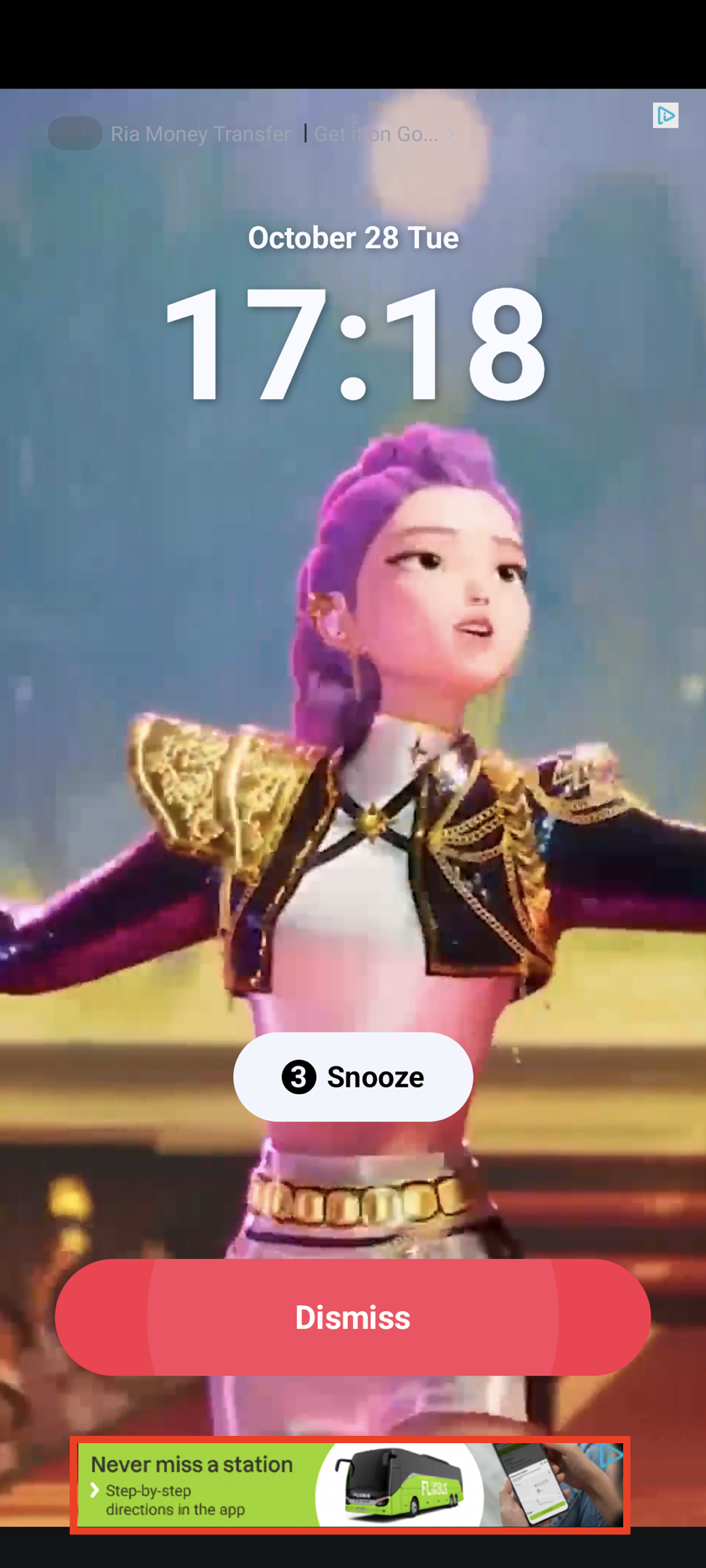
Rectangular ad format (320x50) that occupies part of your app layout. Supported by most ad demand sources.
 ### MREC Ads
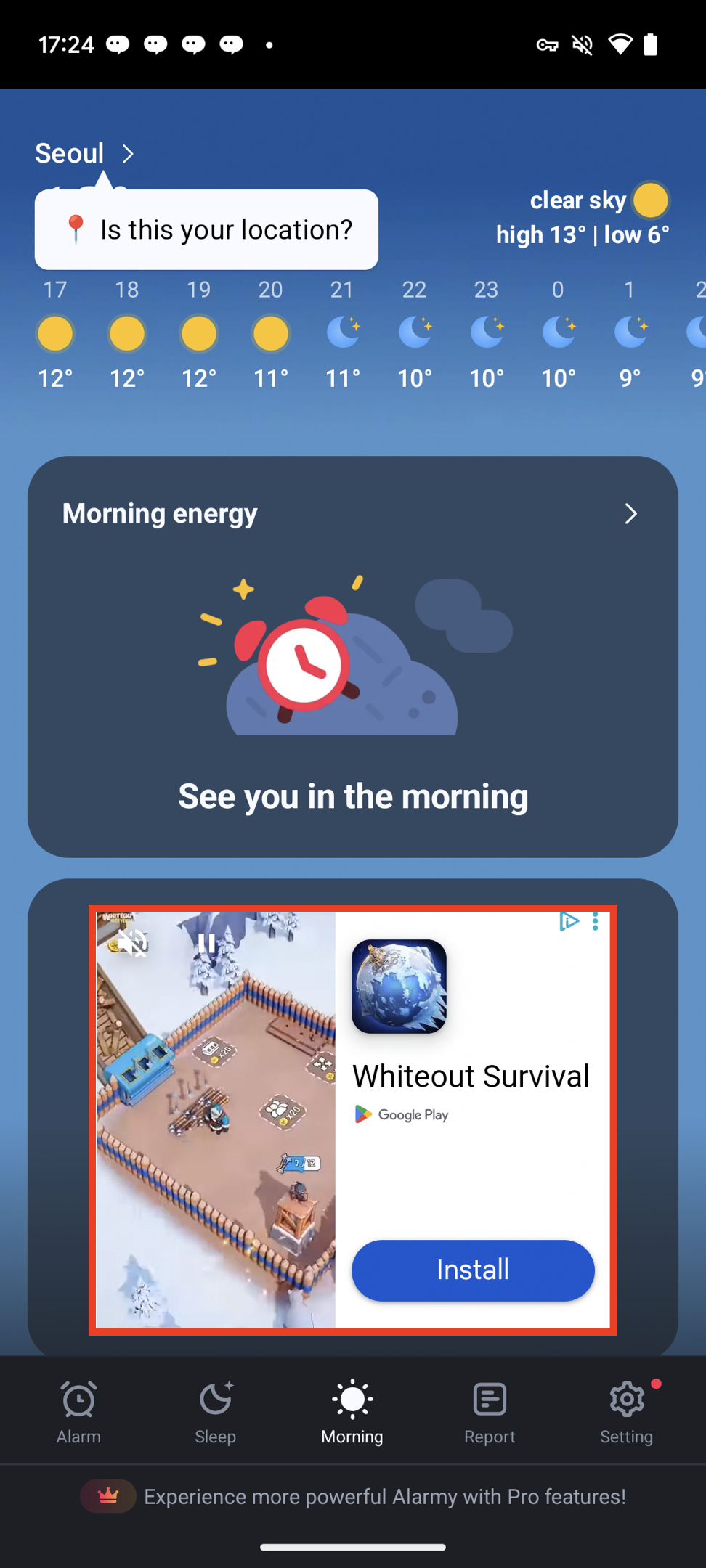
Medium Rectangle format (300x250) with similar characteristics to banner ads.
### MREC Ads
Medium Rectangle format (300x250) with similar characteristics to banner ads.
 ***
## Ad Unit Setup
Configure your ad unit using the `ad unit ID` issued from the dashboard.
```swift theme={null}
let bannerUnit = DaroAdUnit(unitId: "your_banner_unit_id")
let mrecUnit = DaroAdUnit(unitId: "your_mrec_unit_id")
```
```objc theme={null}
// In Objective-C, unitId is passed directly during initialization
// instead of creating a separate DaroAdUnit
NSString *bannerUnitId = @"your_banner_unit_id";
NSString *mrecUnitId = @"your_mrec_unit_id";
```
## Ad Implementation
### Basic Usage
```swift theme={null}
// Banner ad
let bannerView = DaroAdBannerView(
unit: bannerUnit,
bannerSize: .banner
)
// MREC ad
let bannerView = DaroAdBannerView(
unit: mrecUnit,
bannerSize: .MREC
)
```
```objc theme={null}
// Banner ad
DaroObjCBannerView *bannerView = [[DaroObjCBannerView alloc]
initWithUnitId:bannerUnitId
bannerSize:DaroObjCBannerSizeBanner];
// MREC ad
DaroObjCBannerView *mrecView = [[DaroObjCBannerView alloc]
initWithUnitId:mrecUnitId
bannerSize:DaroObjCBannerSizeMrec];
```
> **Note**: Banner ads automatically load the initial ad upon creation.
### Manual Initial Load Setup
You can use the `autoLoad` parameter to directly control the initial load timing of the ad.
```swift theme={null}
// Banner ad - manual initial load mode
let bannerView = DaroAdBannerView(
unit: bannerUnit,
bannerSize: .banner,
autoLoad: false // Disable automatic initial load
)
// Load initial ad at desired time
bannerView.loadAd()
```
```objc theme={null}
// Banner ad - manual initial load mode
DaroObjCBannerView *bannerView = [[DaroObjCBannerView alloc]
initWithUnitId:bannerUnitId
bannerSize:DaroObjCBannerSizeBanner
autoLoad:NO]; // Disable automatic initial load
// Load initial ad at desired time
[bannerView loadAd];
```
#### autoLoad Parameter
* `true` (default): Automatically loads initial ad when view is created
* `false`: Initial ad loads when `loadAd()` is manually called
Manual initial load is useful in the following cases:
* When you want to display the ad after a specific user action
* When you want to control ad load timing during screen transitions
* When you want to load the ad after checking network status
**Note**: Ad refresh after loading is automatically managed by the SDK.
### Setting Listeners/Delegates
You can set listeners to monitor ad status changes.
```swift theme={null}
bannerView.listener.onAdLoadSuccess = { ad, adInfo in
print("[DARO] Listener Banner Ad loaded: \(ad) \(adInfo)")
}
bannerView.listener.onAdLoadFail = { error in
print("[DARO] Listener Banner Ad failed: \(error)")
}
bannerView.listener.onAdClicked = { adInfo in
print("[DARO] Listener Banner Ad clicked: \(adInfo)")
}
bannerView.listener.onAdImpression = { adInfo in
print("[DARO] Listener Banner Ad impression: \(adInfo)")
}
```
You can set a delegate to monitor ad status changes.
**1. Adopt the delegate protocol in your header file:**
```objc theme={null}
@interface YourViewController ()
@property (nonatomic, strong) DaroObjCBannerView *bannerView;
@end
```
**2. Set the delegate:**
```objc theme={null}
// Set delegate
self.bannerView.delegate = self;
// Add to view hierarchy
[self.view addSubview:self.bannerView];
```
**3. Implement delegate methods:**
```objc theme={null}
#pragma mark - DaroObjCBannerViewDelegate
- (void)bannerViewDidLoad:(DaroObjCBannerView *)bannerView
adInfo:(DaroObjCAdInfo *)adInfo {
NSLog(@"[DARO] Banner loaded - Unit: %@", adInfo.adUnitId);
}
- (void)bannerView:(DaroObjCBannerView *)bannerView
didFailWithError:(NSError *)error {
NSLog(@"[DARO] Failed to load: %@", error.localizedDescription);
}
- (void)bannerViewDidClick:(DaroObjCBannerView *)bannerView
adInfo:(DaroObjCAdInfo *)adInfo {
NSLog(@"[DARO] Banner clicked");
}
- (void)bannerViewDidRecordImpression:(DaroObjCBannerView *)bannerView
adInfo:(DaroObjCAdInfo *)adInfo {
NSLog(@"[DARO] Banner impression recorded");
}
```
***
## Ad Unit Setup
Configure your ad unit using the `ad unit ID` issued from the dashboard.
```swift theme={null}
let bannerUnit = DaroAdUnit(unitId: "your_banner_unit_id")
let mrecUnit = DaroAdUnit(unitId: "your_mrec_unit_id")
```
```objc theme={null}
// In Objective-C, unitId is passed directly during initialization
// instead of creating a separate DaroAdUnit
NSString *bannerUnitId = @"your_banner_unit_id";
NSString *mrecUnitId = @"your_mrec_unit_id";
```
## Ad Implementation
### Basic Usage
```swift theme={null}
// Banner ad
let bannerView = DaroAdBannerView(
unit: bannerUnit,
bannerSize: .banner
)
// MREC ad
let bannerView = DaroAdBannerView(
unit: mrecUnit,
bannerSize: .MREC
)
```
```objc theme={null}
// Banner ad
DaroObjCBannerView *bannerView = [[DaroObjCBannerView alloc]
initWithUnitId:bannerUnitId
bannerSize:DaroObjCBannerSizeBanner];
// MREC ad
DaroObjCBannerView *mrecView = [[DaroObjCBannerView alloc]
initWithUnitId:mrecUnitId
bannerSize:DaroObjCBannerSizeMrec];
```
> **Note**: Banner ads automatically load the initial ad upon creation.
### Manual Initial Load Setup
You can use the `autoLoad` parameter to directly control the initial load timing of the ad.
```swift theme={null}
// Banner ad - manual initial load mode
let bannerView = DaroAdBannerView(
unit: bannerUnit,
bannerSize: .banner,
autoLoad: false // Disable automatic initial load
)
// Load initial ad at desired time
bannerView.loadAd()
```
```objc theme={null}
// Banner ad - manual initial load mode
DaroObjCBannerView *bannerView = [[DaroObjCBannerView alloc]
initWithUnitId:bannerUnitId
bannerSize:DaroObjCBannerSizeBanner
autoLoad:NO]; // Disable automatic initial load
// Load initial ad at desired time
[bannerView loadAd];
```
#### autoLoad Parameter
* `true` (default): Automatically loads initial ad when view is created
* `false`: Initial ad loads when `loadAd()` is manually called
Manual initial load is useful in the following cases:
* When you want to display the ad after a specific user action
* When you want to control ad load timing during screen transitions
* When you want to load the ad after checking network status
**Note**: Ad refresh after loading is automatically managed by the SDK.
### Setting Listeners/Delegates
You can set listeners to monitor ad status changes.
```swift theme={null}
bannerView.listener.onAdLoadSuccess = { ad, adInfo in
print("[DARO] Listener Banner Ad loaded: \(ad) \(adInfo)")
}
bannerView.listener.onAdLoadFail = { error in
print("[DARO] Listener Banner Ad failed: \(error)")
}
bannerView.listener.onAdClicked = { adInfo in
print("[DARO] Listener Banner Ad clicked: \(adInfo)")
}
bannerView.listener.onAdImpression = { adInfo in
print("[DARO] Listener Banner Ad impression: \(adInfo)")
}
```
You can set a delegate to monitor ad status changes.
**1. Adopt the delegate protocol in your header file:**
```objc theme={null}
@interface YourViewController ()
@property (nonatomic, strong) DaroObjCBannerView *bannerView;
@end
```
**2. Set the delegate:**
```objc theme={null}
// Set delegate
self.bannerView.delegate = self;
// Add to view hierarchy
[self.view addSubview:self.bannerView];
```
**3. Implement delegate methods:**
```objc theme={null}
#pragma mark - DaroObjCBannerViewDelegate
- (void)bannerViewDidLoad:(DaroObjCBannerView *)bannerView
adInfo:(DaroObjCAdInfo *)adInfo {
NSLog(@"[DARO] Banner loaded - Unit: %@", adInfo.adUnitId);
}
- (void)bannerView:(DaroObjCBannerView *)bannerView
didFailWithError:(NSError *)error {
NSLog(@"[DARO] Failed to load: %@", error.localizedDescription);
}
- (void)bannerViewDidClick:(DaroObjCBannerView *)bannerView
adInfo:(DaroObjCAdInfo *)adInfo {
NSLog(@"[DARO] Banner clicked");
}
- (void)bannerViewDidRecordImpression:(DaroObjCBannerView *)bannerView
adInfo:(DaroObjCAdInfo *)adInfo {
NSLog(@"[DARO] Banner impression recorded");
}
```