> ## Documentation Index
> Fetch the complete documentation index at: https://guide.daro.so/llms.txt
> Use this file to discover all available pages before exploring further.
# Native Ads
> Implement native ads in your Unity project.
## Native Ad Format
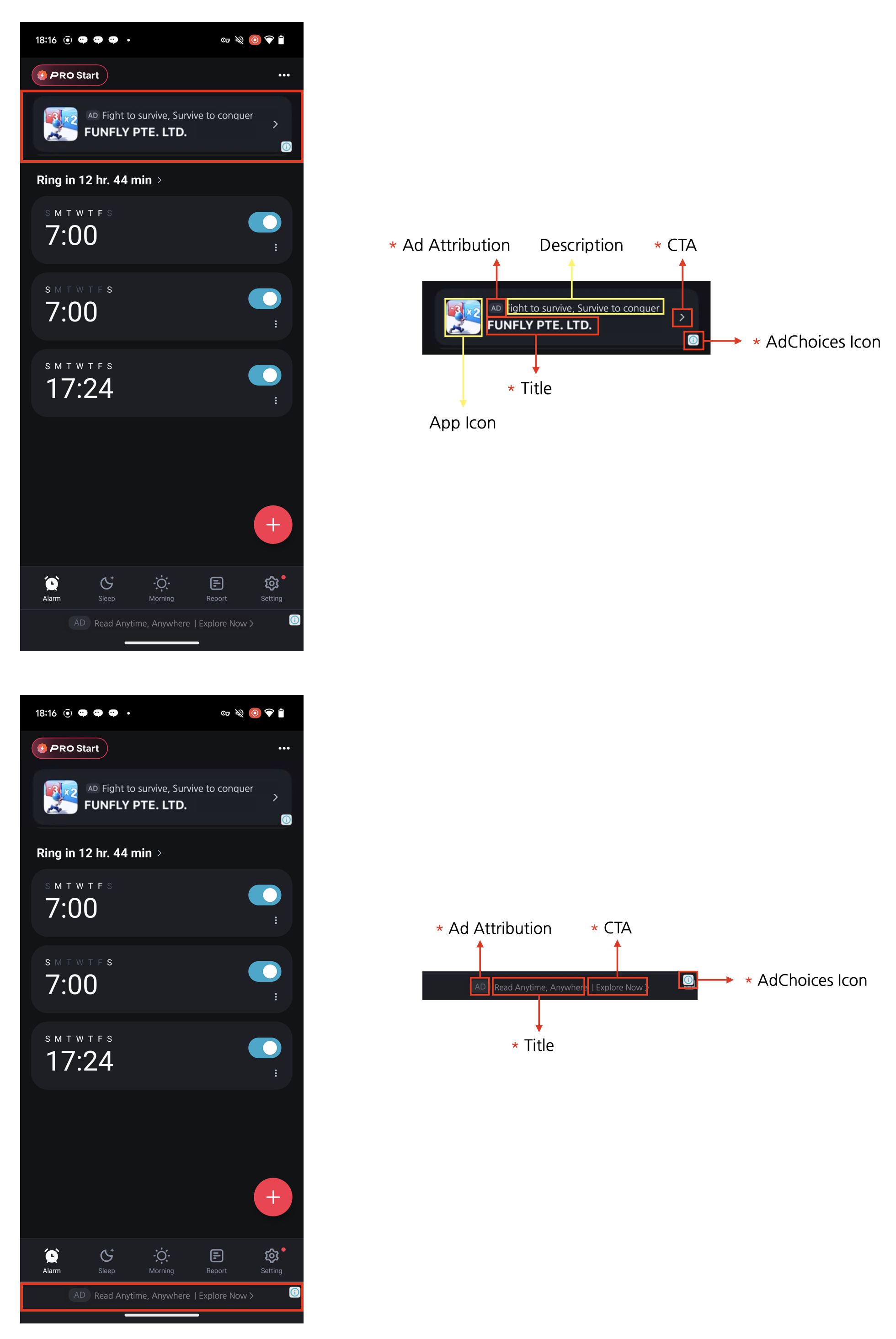
* Ads rendered inside your app UI.
* Attach `DaroNativeAdView` to a Unity UI prefab and wire slots, or read `DaroNativeAd.Info` directly into custom UI.
 ***
## Integrating Ads
Add `DaroNativeAdView` to the Unity UI prefab root. Wire `TitleText`, `BodyText`, `IconImage`, `CtaButton`, and `MediaContainer`.
`MediaContainer` is optional. When the bound ad has no media asset, `DaroNativeAdView` hides `MediaContainer` automatically.
`Bind(ad)` also connects `CtaButton` taps to the native click flow on Android and iOS.
```csharp theme={null}
private DaroNativeAd ad;
[SerializeField] private DaroNativeAdView adView;
ad = new DaroNativeAd("your-native-ad-unit-id");
```
```csharp theme={null}
ad.OnAdLoaded += info => adView.Bind(ad);
ad.OnAdFailedToLoad += error => Debug.LogWarning(error.Message);
ad.OnAdImpression += info => Debug.Log("impression");
ad.OnAdClicked += info => Debug.Log("clicked");
```
```csharp theme={null}
adView.LoadFor(ad);
```
```csharp theme={null}
adView.Unbind();
ad?.Dispose();
ad = null;
```
For custom uGUI, use `ad.WireCtaButton(ctaButton)` to connect the actual CTA touch area. If you specified an AdChoices position, also connect the full ad area with `ad.WireAdChoices(fullAdRectTransform)`. Call `NotifyVisible()` and `NotifyHidden()` as visibility changes, and receive ad clicks through `OnAdClicked` rather than the Unity button's `onClick`. Calling `NotifyClicked()` alone does not wire the CTA touch area on a device.
`Info.Icon` and `Info.MediaImage` textures are owned by `DaroNativeAd` and are released when the ad reloads or is disposed. Do not retain or reuse those textures after `Unbind()` and `Dispose()`.
***
## Loading, visibility, and automatic refresh
`LoadFor(ad)` loads the ad; call `Bind(ad)` after loading to display it. On iOS, loading alone does not show the native ad overlay. Deactivating the bound view's GameObject hides the native overlay and its touch area; reactivating it restores them. Call `Unbind()` and `Dispose()` when finished.
Automatic refresh follows the server configuration for the Ad Unit. A refresh interval of 0 disables periodic refresh; a positive interval enables it. Load callbacks may occur again after a single `Load()` call; this is not an error by itself. You do not need a separate ad instance for every refresh. Use the example's `OnAdLoaded` handler to bind the latest ad, and receive clicks through `OnAdClicked`.
## AdChoices placement
Starting with `0.5.0-rc.4`, you can specify the position in the constructor.
```csharp theme={null}
ad = new DaroNativeAd(adUnitId, DaroAdChoicesPosition.TopLeft);
ad.OnAdLoaded += info => adView.Bind(ad);
adView.LoadFor(ad);
```
Available positions are `TopLeft`, `TopRight`, `BottomRight`, and `BottomLeft`. Placement uses the entire RectTransform of `DaroNativeAdView`, so size it to cover the full ad area. The CTA and AdChoices areas are separate. The existing constructor without a position preserves the default placement.
The AdChoices UI supplied by individual ad demand sources may not follow the requested position. Some iOS ads have been observed displaying it on the right even when a left position was requested. Verify placement and touch behavior with the demand sources and screen orientations you use.
## Example
```csharp expandable theme={null}
using Daro;
using UnityEngine;
public sealed class NativeAdHost : MonoBehaviour
{
[SerializeField] private string adUnitId = "your-native-ad-unit-id";
[SerializeField] private DaroNativeAdView adView;
private DaroNativeAd ad;
private void OnEnable()
{
ad = new DaroNativeAd(adUnitId);
ad.OnAdLoaded += info => adView.Bind(ad);
ad.OnAdFailedToLoad += error => Debug.LogWarning(error.Message);
adView.LoadFor(ad);
}
private void OnDisable()
{
adView.Unbind();
ad?.Dispose();
ad = null;
}
}
```
## Adapt the UI to received assets
* Use `DaroNativeAd.OnNativeAdAssetLoaded` to handle missing assets.
* The event type is `Action>`. You can also read `ISet` from `ad.Info.AssetTypes`.
* `iconContainer` is your icon UI container.
| Value | Meaning |
| - | - |
| `Title` | Ad title |
| `Body` | Ad body text |
| `Icon` | Ad icon |
| `Media` | Ad image or video |
| `CallToAction` | Call-to-action button text (e.g., Install) |
| `Advertiser` | Advertiser name (iOS) |
```csharp theme={null}
using Daro;
bool hasReceivedMedia = false;
ad.OnNativeAdAssetLoaded += assetTypes =>
{
hasReceivedMedia = assetTypes.Contains(NativeAdAssetType.Media);
};
ad.OnAdLoaded += info =>
{
adView.Bind(ad);
iconContainer.SetActive(ad.Info != null &&
ad.Info.AssetTypes.Contains(NativeAdAssetType.Icon));
};
```
* `Advertiser` reports availability only; there is no advertiser-name field in `Info` or dedicated view slot.
* `Media` is a receipt signal from the native SDK. Unity media texture delivery is unsupported, so do not assume `Info.MediaImage` exists based on this value.
***
## Integrating Ads
Add `DaroNativeAdView` to the Unity UI prefab root. Wire `TitleText`, `BodyText`, `IconImage`, `CtaButton`, and `MediaContainer`.
`MediaContainer` is optional. When the bound ad has no media asset, `DaroNativeAdView` hides `MediaContainer` automatically.
`Bind(ad)` also connects `CtaButton` taps to the native click flow on Android and iOS.
```csharp theme={null}
private DaroNativeAd ad;
[SerializeField] private DaroNativeAdView adView;
ad = new DaroNativeAd("your-native-ad-unit-id");
```
```csharp theme={null}
ad.OnAdLoaded += info => adView.Bind(ad);
ad.OnAdFailedToLoad += error => Debug.LogWarning(error.Message);
ad.OnAdImpression += info => Debug.Log("impression");
ad.OnAdClicked += info => Debug.Log("clicked");
```
```csharp theme={null}
adView.LoadFor(ad);
```
```csharp theme={null}
adView.Unbind();
ad?.Dispose();
ad = null;
```
For custom uGUI, use `ad.WireCtaButton(ctaButton)` to connect the actual CTA touch area. If you specified an AdChoices position, also connect the full ad area with `ad.WireAdChoices(fullAdRectTransform)`. Call `NotifyVisible()` and `NotifyHidden()` as visibility changes, and receive ad clicks through `OnAdClicked` rather than the Unity button's `onClick`. Calling `NotifyClicked()` alone does not wire the CTA touch area on a device.
`Info.Icon` and `Info.MediaImage` textures are owned by `DaroNativeAd` and are released when the ad reloads or is disposed. Do not retain or reuse those textures after `Unbind()` and `Dispose()`.
***
## Loading, visibility, and automatic refresh
`LoadFor(ad)` loads the ad; call `Bind(ad)` after loading to display it. On iOS, loading alone does not show the native ad overlay. Deactivating the bound view's GameObject hides the native overlay and its touch area; reactivating it restores them. Call `Unbind()` and `Dispose()` when finished.
Automatic refresh follows the server configuration for the Ad Unit. A refresh interval of 0 disables periodic refresh; a positive interval enables it. Load callbacks may occur again after a single `Load()` call; this is not an error by itself. You do not need a separate ad instance for every refresh. Use the example's `OnAdLoaded` handler to bind the latest ad, and receive clicks through `OnAdClicked`.
## AdChoices placement
Starting with `0.5.0-rc.4`, you can specify the position in the constructor.
```csharp theme={null}
ad = new DaroNativeAd(adUnitId, DaroAdChoicesPosition.TopLeft);
ad.OnAdLoaded += info => adView.Bind(ad);
adView.LoadFor(ad);
```
Available positions are `TopLeft`, `TopRight`, `BottomRight`, and `BottomLeft`. Placement uses the entire RectTransform of `DaroNativeAdView`, so size it to cover the full ad area. The CTA and AdChoices areas are separate. The existing constructor without a position preserves the default placement.
The AdChoices UI supplied by individual ad demand sources may not follow the requested position. Some iOS ads have been observed displaying it on the right even when a left position was requested. Verify placement and touch behavior with the demand sources and screen orientations you use.
## Example
```csharp expandable theme={null}
using Daro;
using UnityEngine;
public sealed class NativeAdHost : MonoBehaviour
{
[SerializeField] private string adUnitId = "your-native-ad-unit-id";
[SerializeField] private DaroNativeAdView adView;
private DaroNativeAd ad;
private void OnEnable()
{
ad = new DaroNativeAd(adUnitId);
ad.OnAdLoaded += info => adView.Bind(ad);
ad.OnAdFailedToLoad += error => Debug.LogWarning(error.Message);
adView.LoadFor(ad);
}
private void OnDisable()
{
adView.Unbind();
ad?.Dispose();
ad = null;
}
}
```
## Adapt the UI to received assets
* Use `DaroNativeAd.OnNativeAdAssetLoaded` to handle missing assets.
* The event type is `Action>`. You can also read `ISet` from `ad.Info.AssetTypes`.
* `iconContainer` is your icon UI container.
| Value | Meaning |
| - | - |
| `Title` | Ad title |
| `Body` | Ad body text |
| `Icon` | Ad icon |
| `Media` | Ad image or video |
| `CallToAction` | Call-to-action button text (e.g., Install) |
| `Advertiser` | Advertiser name (iOS) |
```csharp theme={null}
using Daro;
bool hasReceivedMedia = false;
ad.OnNativeAdAssetLoaded += assetTypes =>
{
hasReceivedMedia = assetTypes.Contains(NativeAdAssetType.Media);
};
ad.OnAdLoaded += info =>
{
adView.Bind(ad);
iconContainer.SetActive(ad.Info != null &&
ad.Info.AssetTypes.Contains(NativeAdAssetType.Icon));
};
```
* `Advertiser` reports availability only; there is no advertiser-name field in `Info` or dedicated view slot.
* `Media` is a receipt signal from the native SDK. Unity media texture delivery is unsupported, so do not assume `Info.MediaImage` exists based on this value.