> ## Documentation Index
> Fetch the complete documentation index at: https://guide.daro.so/llms.txt
> Use this file to discover all available pages before exploring further.
# Create an Ad Unit
> Create ad units for each ad format. Register your app before creating ad units.
Create an ad unit:
1. Navigate to **Ad Units** and click **Add Ad Unit**.
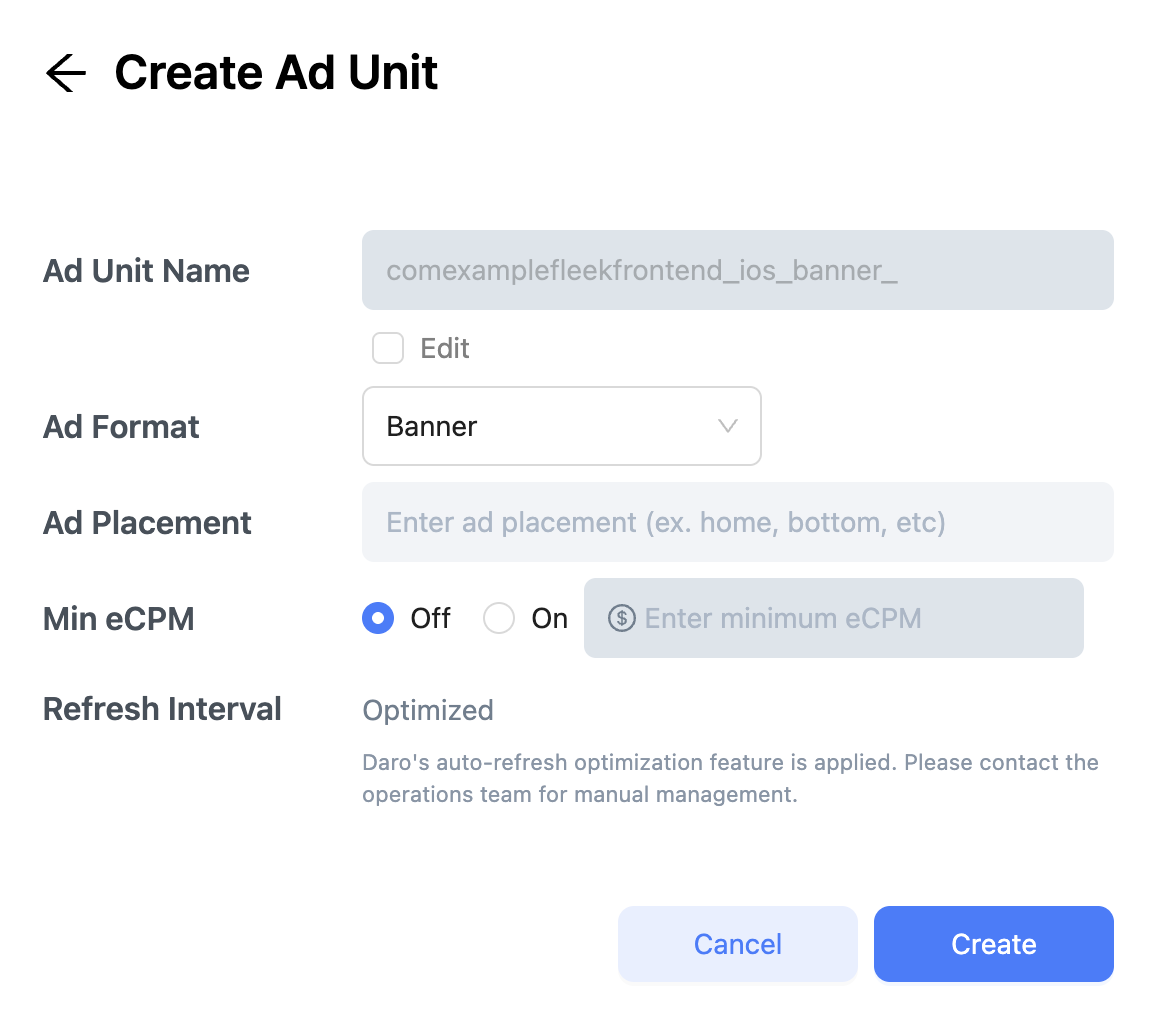 2. Select **Ad Format** and enter **Ad Placement** name. DARO generates an **Ad Unit Name** automatically (`app_package_name_os_ad_format_ad_placement`). To customize, select **Enter Manually**.
**Naming best practice**: Use lowercase with underscores: `appname_os_adformat_placement`
Example: `daro_ios_interstitial_main_home`
3. Optionally, set minimum eCPM (disabled by default).
**About minimum eCPM**: DARO optimizes eCPM automatically based on performance and demand. Setting a floor may temporarily boost revenue but can reduce long-term earnings by limiting buyers. Use carefully.
## Important Notes
* Maximum **20 ad units** in Live status per app
* Create one ad unit per placement
* Only create ad units you'll integrate—unused units affect optimization
2. Select **Ad Format** and enter **Ad Placement** name. DARO generates an **Ad Unit Name** automatically (`app_package_name_os_ad_format_ad_placement`). To customize, select **Enter Manually**.
**Naming best practice**: Use lowercase with underscores: `appname_os_adformat_placement`
Example: `daro_ios_interstitial_main_home`
3. Optionally, set minimum eCPM (disabled by default).
**About minimum eCPM**: DARO optimizes eCPM automatically based on performance and demand. Setting a floor may temporarily boost revenue but can reduce long-term earnings by limiting buyers. Use carefully.
## Important Notes
* Maximum **20 ad units** in Live status per app
* Create one ad unit per placement
* Only create ad units you'll integrate—unused units affect optimization